From booking to follow-up, with AI in every step and the clinician deciding
Patients book from your real availability, visits are recorded only with consent, the AI drafts the summary for the clinician to review, and care plans turn into check-ins patients complete at home. Routine messages get an answer from the doctor's AI proxy; everything else goes to the doctor.
- Less time on scheduling and paperwork
- Every AI draft reviewed by a clinician
- Patients stay on track between visits
How it works
A typical visit, from the patient's booking to the follow-up report.
- Step 1
Book
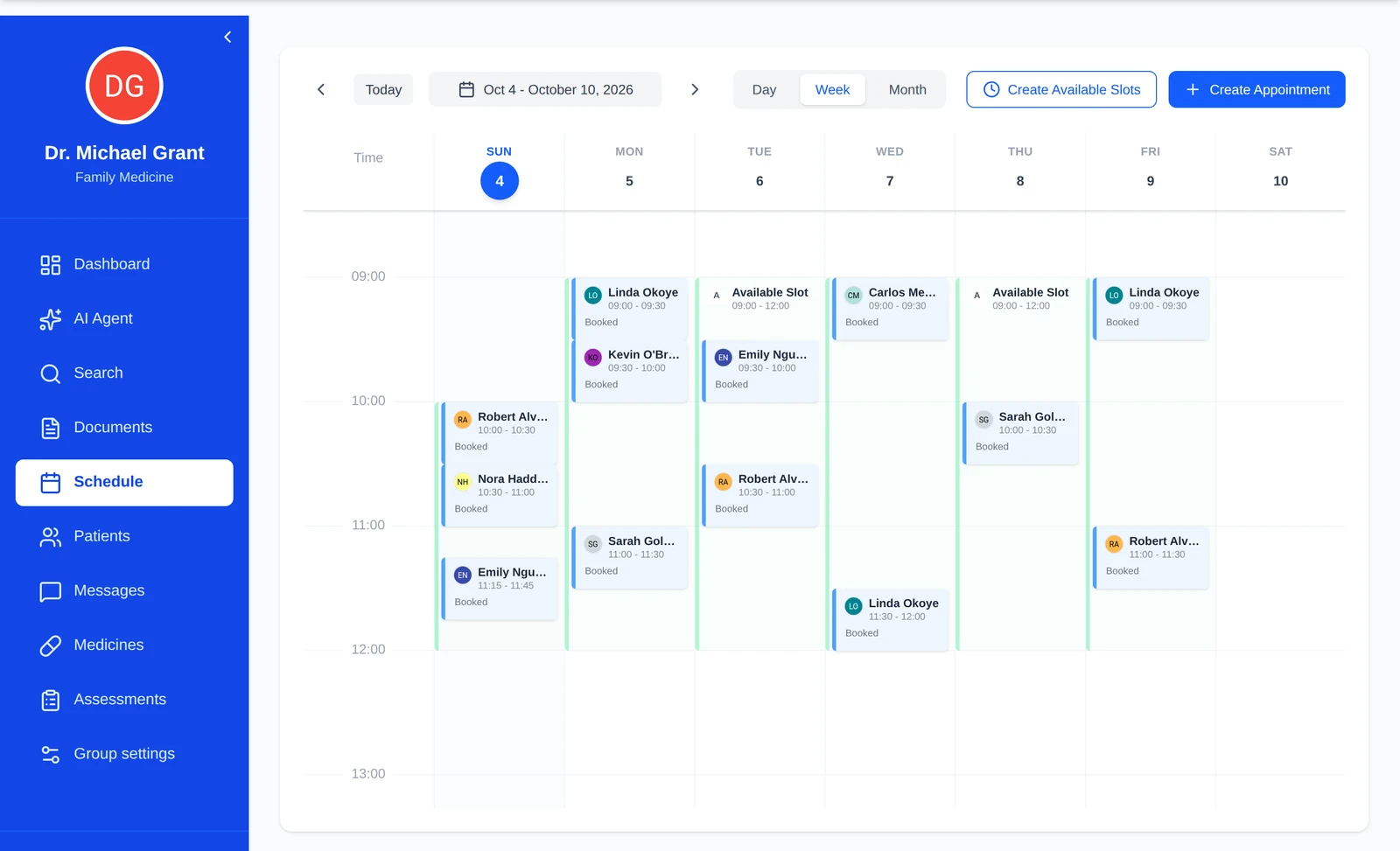
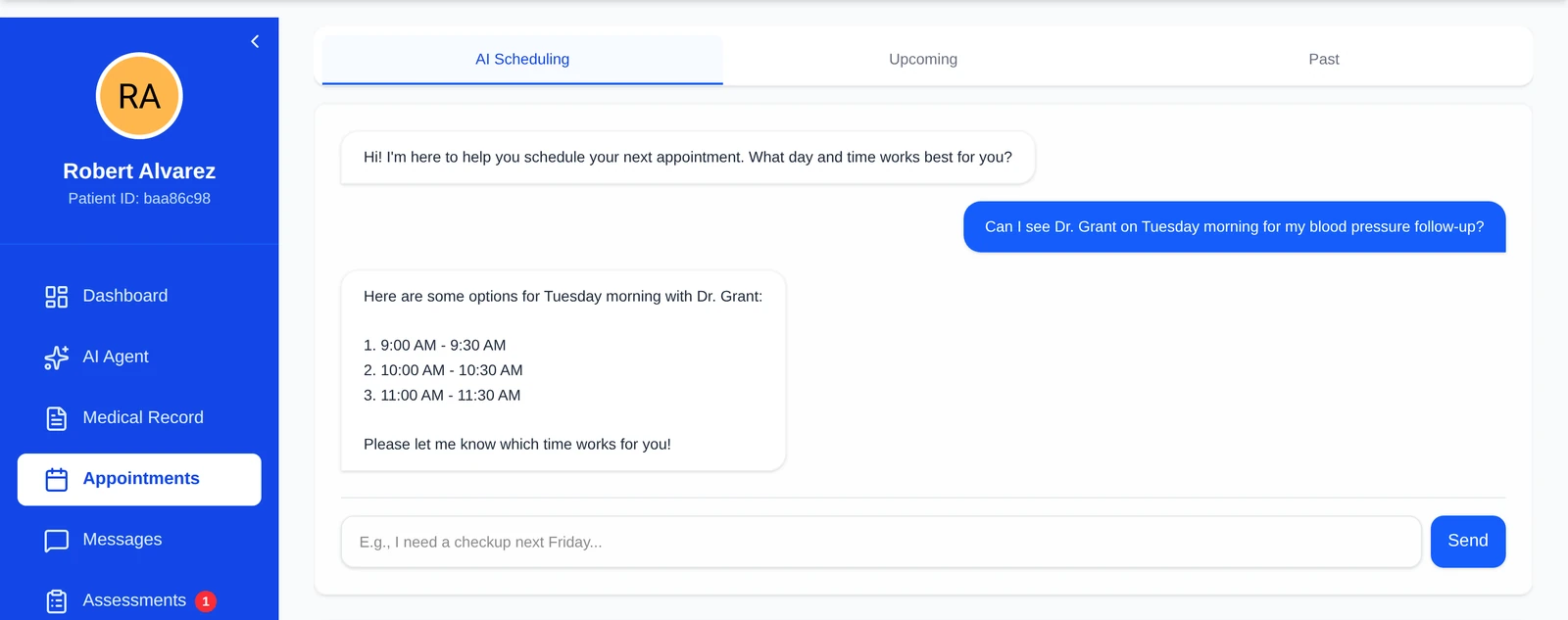
The patient picks an open slot, or asks the AI scheduling assistant. It offers only times your providers have actually opened, and the booking lands in the doctor's calendar.
- Works from each provider's availability and exceptions
- Appointment status: booked, arrived, fulfilled, cancelled, no-show
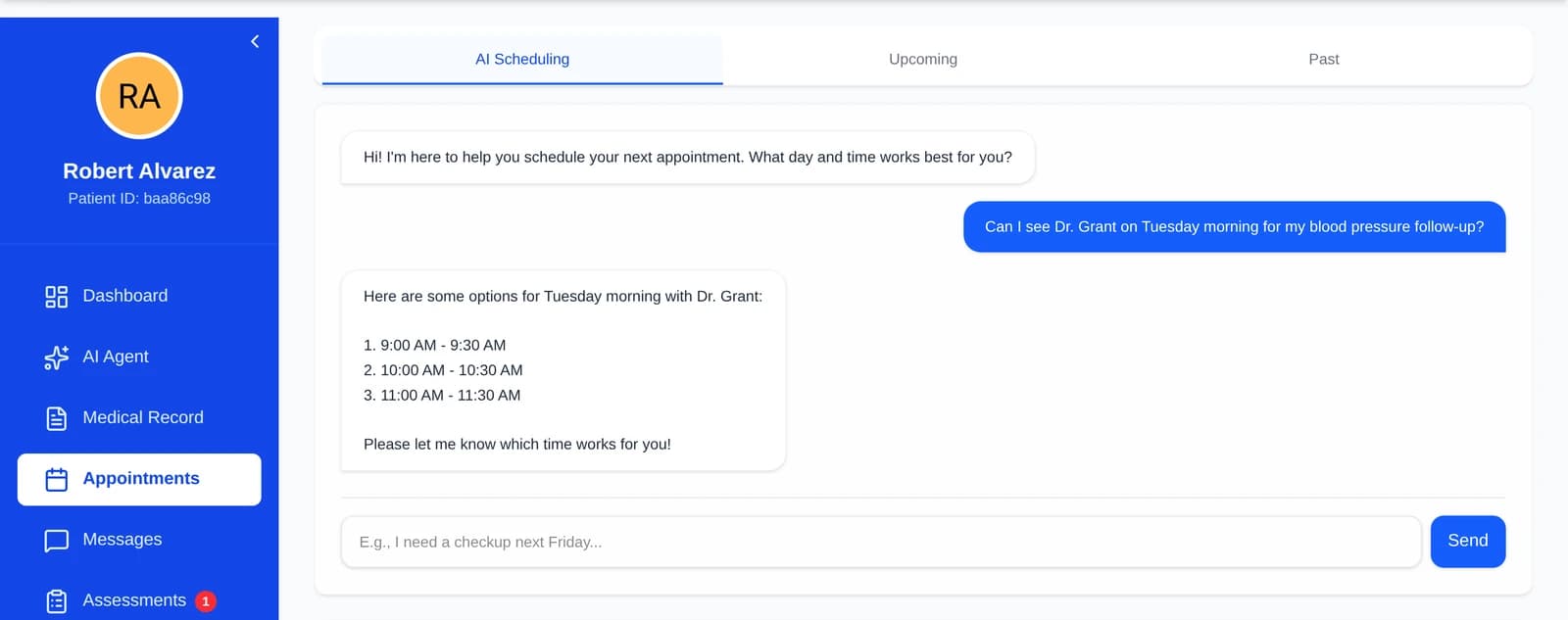
The AI scheduling assistant offers real open slots. - Step 2
Visit, recorded only with consent
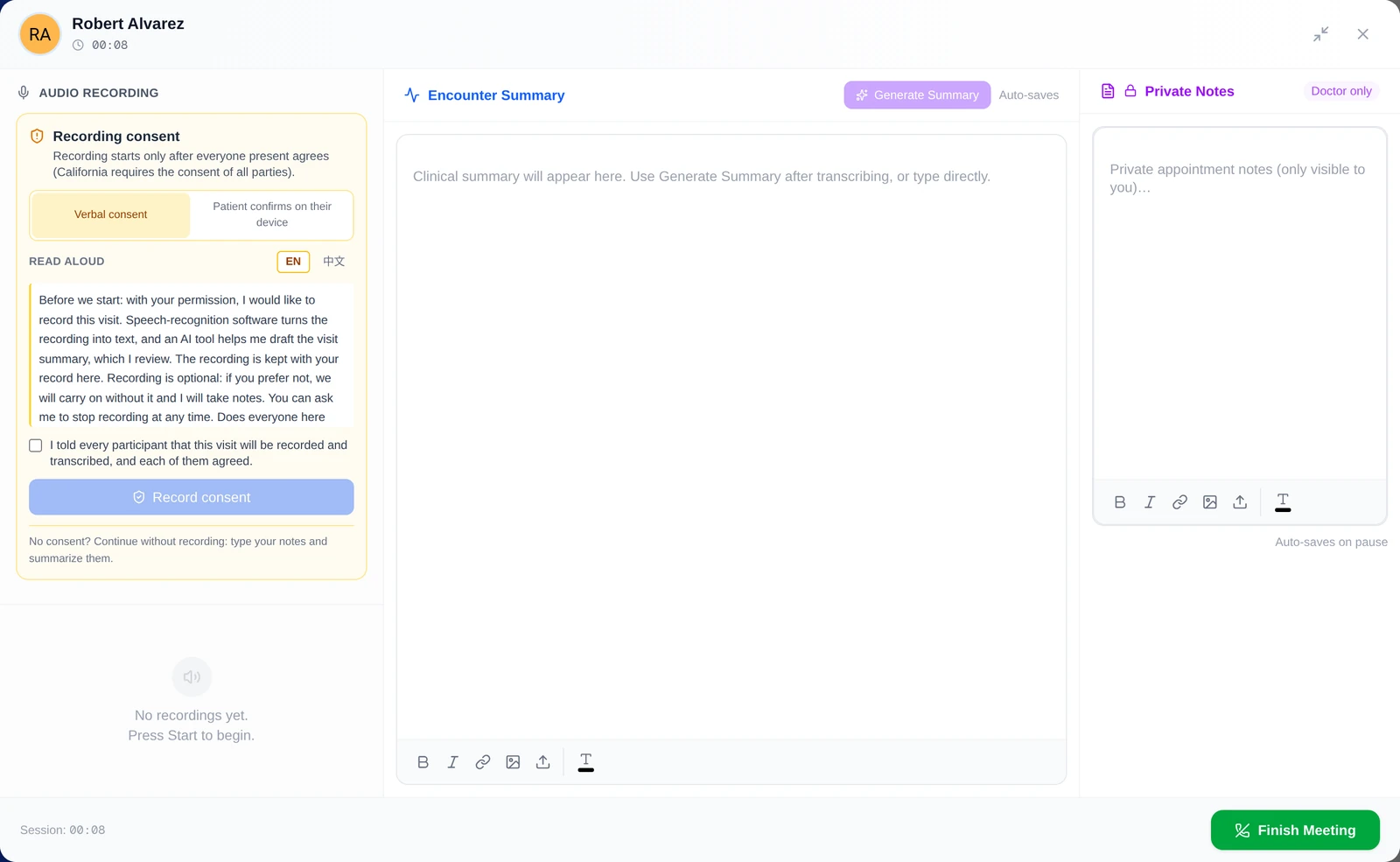
The doctor starts a Meet Now visit. Before anything is recorded, the doctor reads a short consent script and confirms that everyone agreed, or the patient agrees from their own login. Without consent the visit goes ahead unrecorded.
- Withdrawing consent stops the recording
- Every consent change is written to the audit log
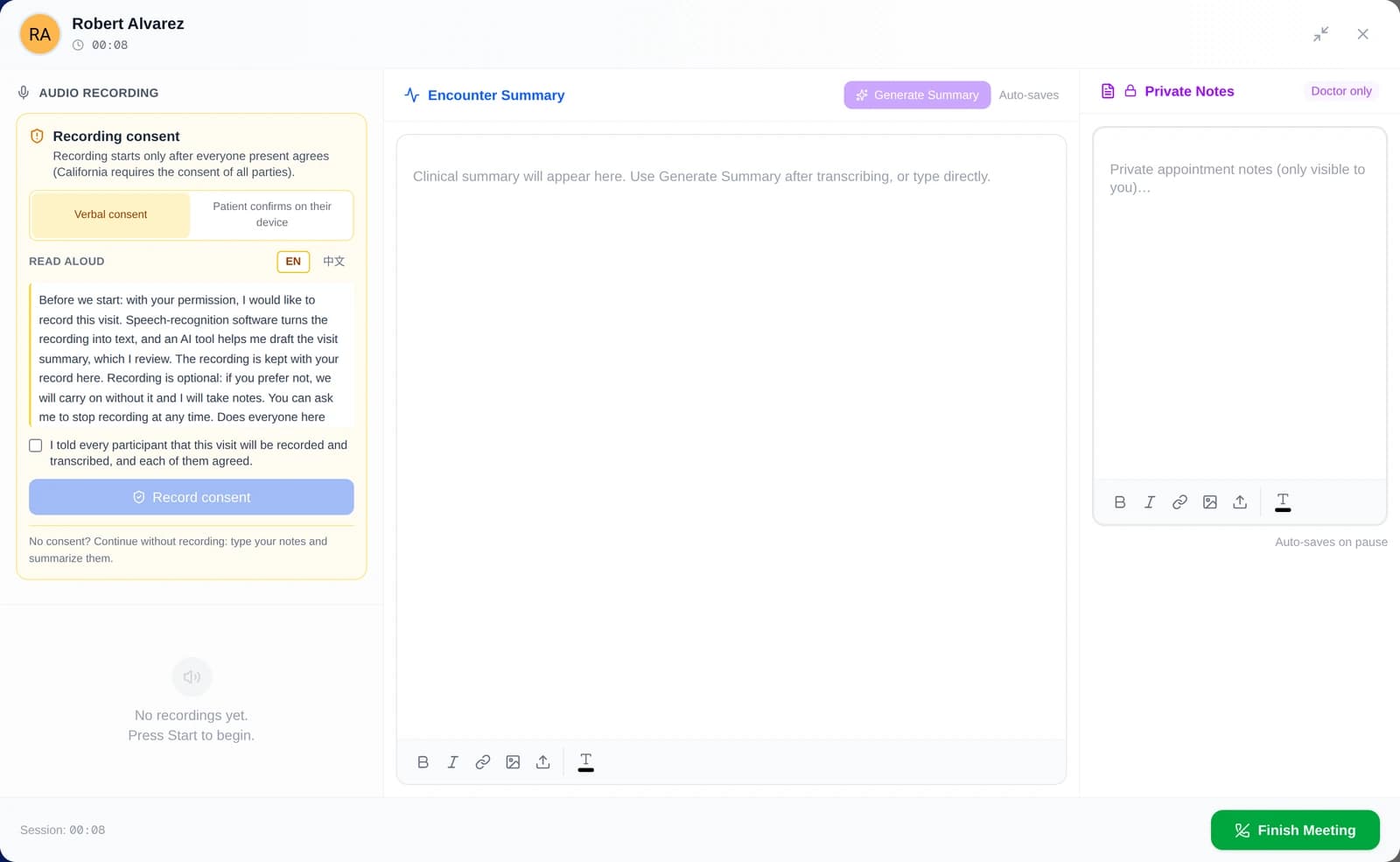
Meet Now asks for consent before it records. - Step 3
Review the AI summary
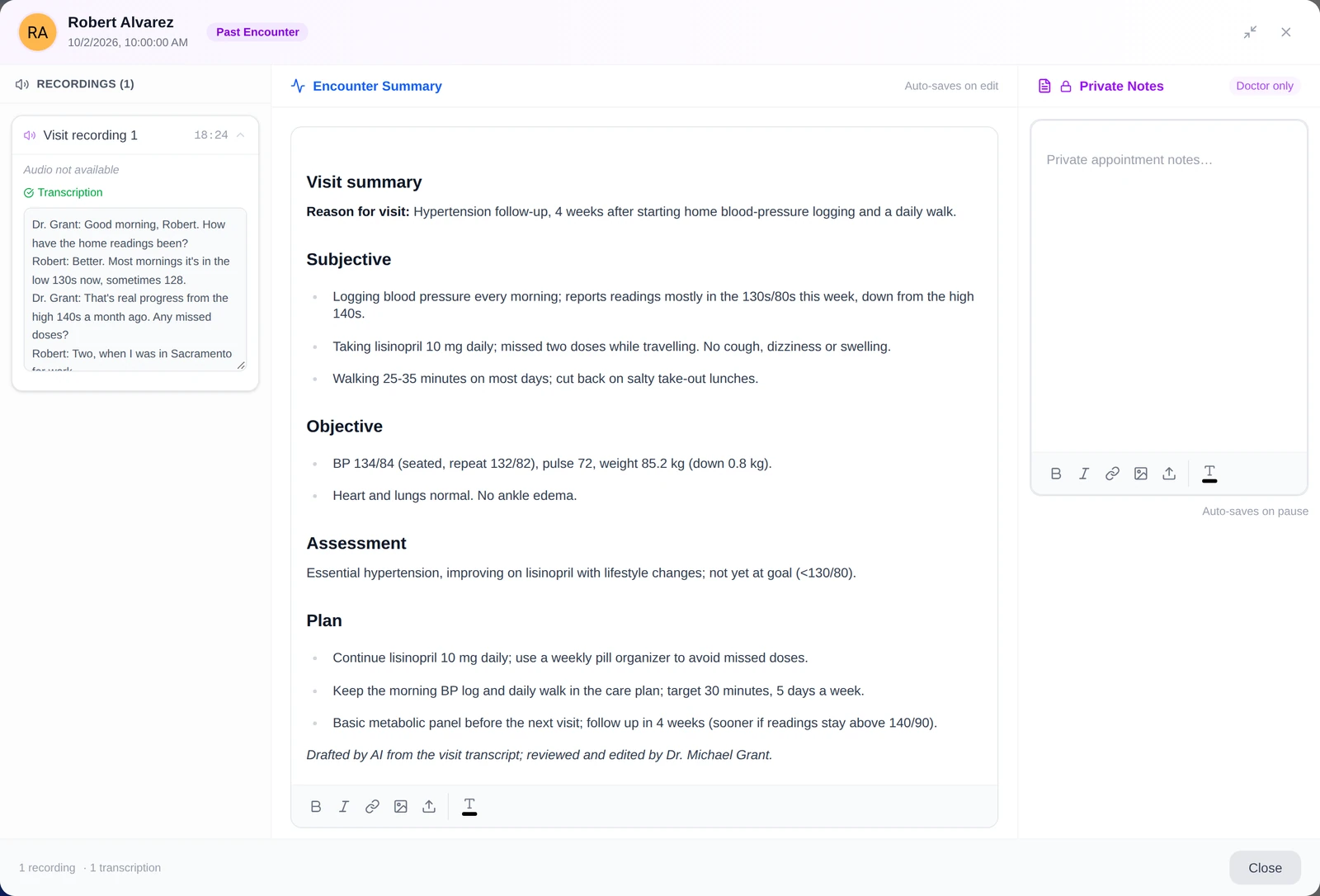
When the visit ends, the recording is transcribed (on our own servers by default) and the AI drafts a visit summary. The doctor reviews and edits it before it becomes part of the record.
- A summary can also be drafted from typed notes
- Private visit notes are never shown to the patient
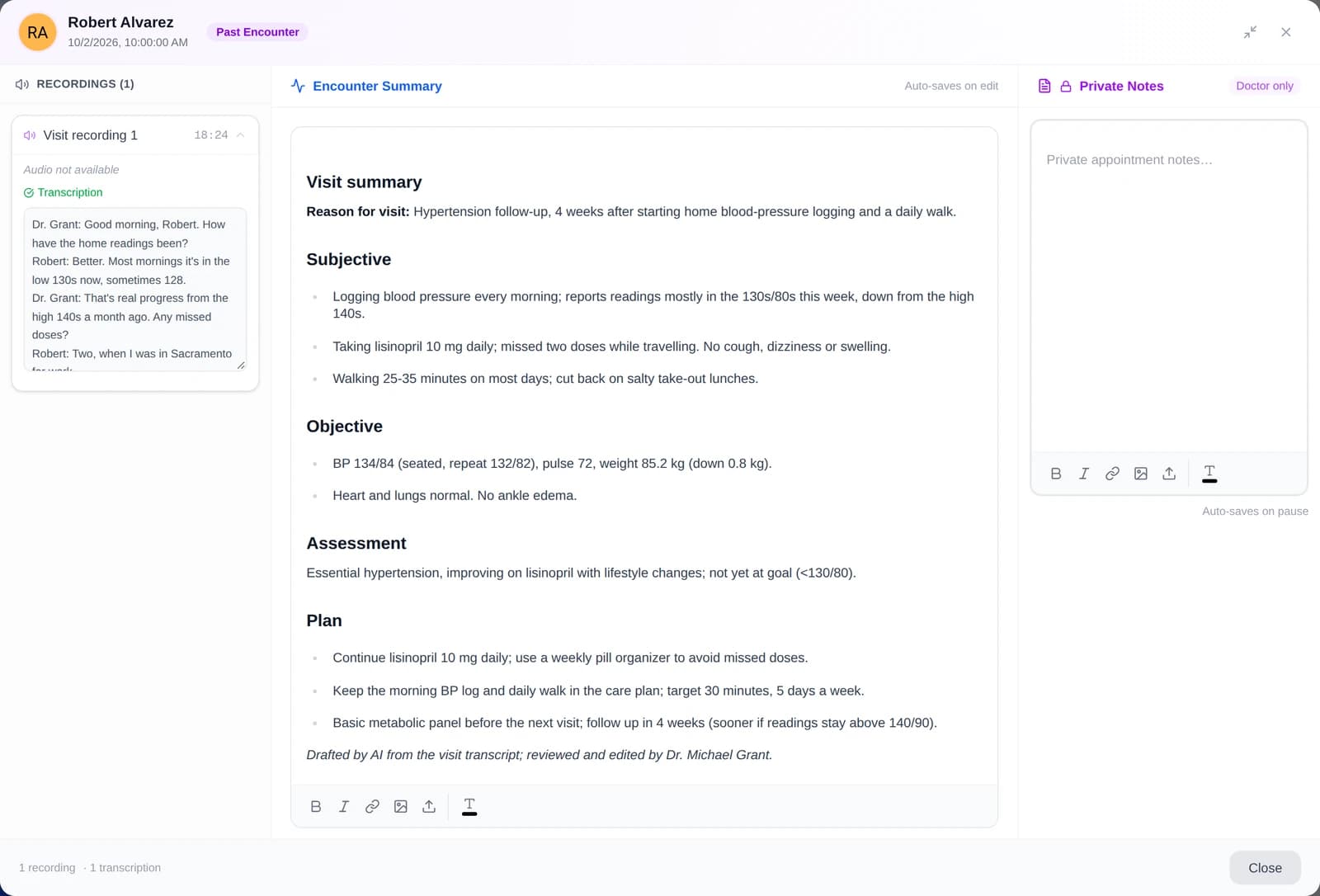
The AI drafts; the doctor reviews and edits. - Step 4
Care plan and check-ins
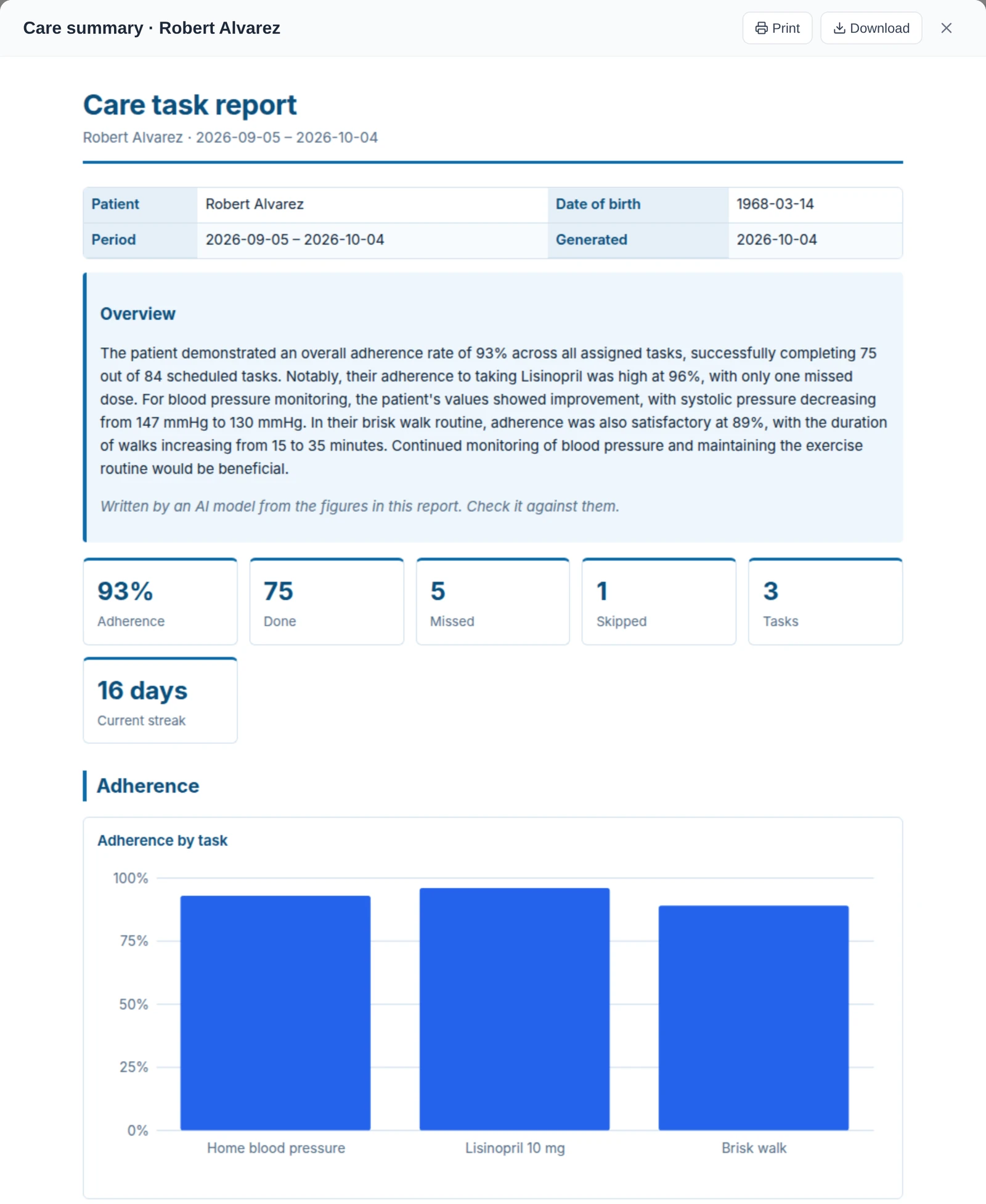
The doctor sets up recurring tasks: symptom or mood check-ins, logs such as blood pressure, medication and exercise check-offs, and questionnaires. They appear on the patient's dashboard each day, and one click produces a printable report with charts.
- Daily, weekly or monthly, on chosen weekdays
- Streaks and history for the patient
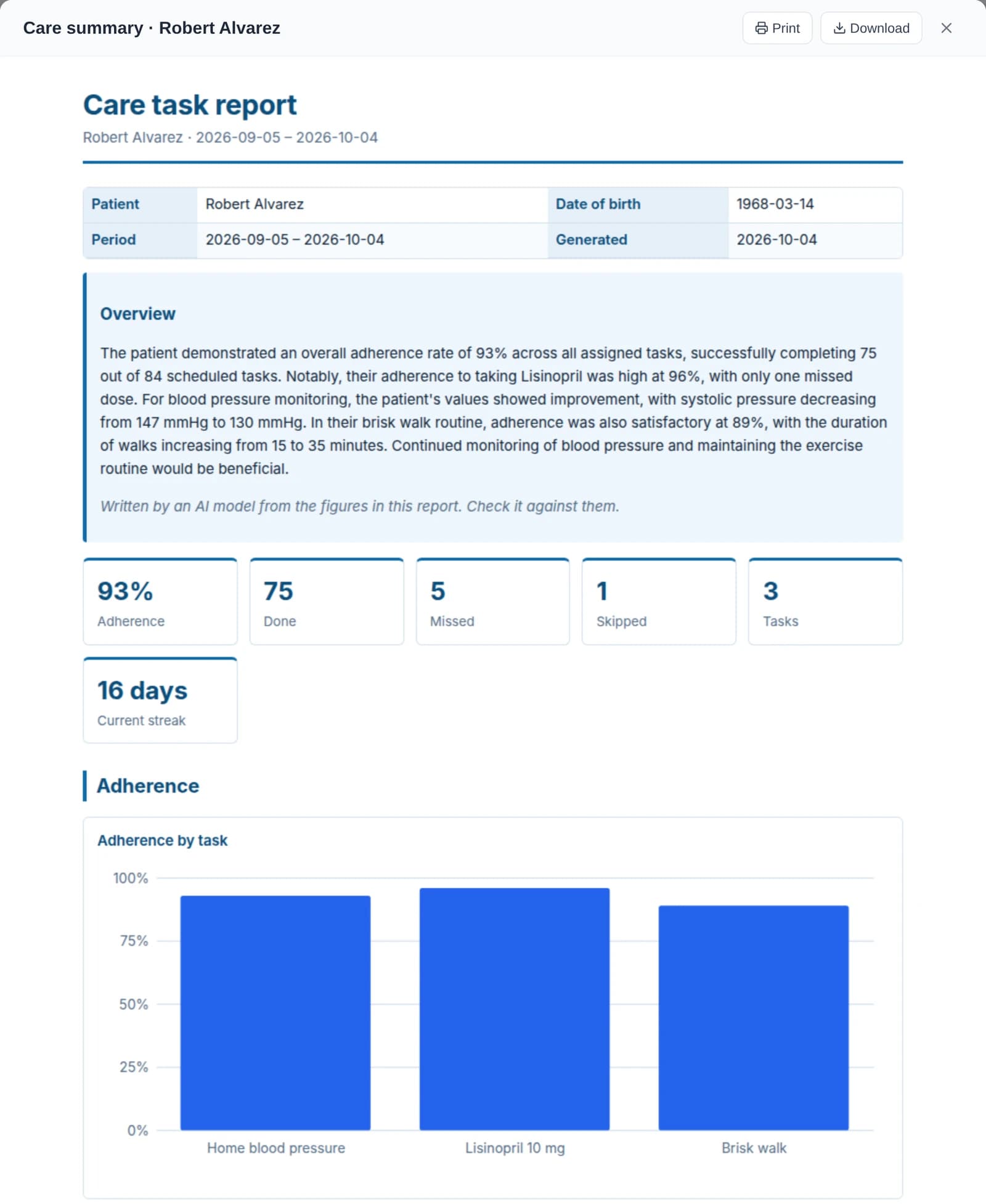
One click: a report with charts of the care plan. - Step 5
Questionnaires and assessments
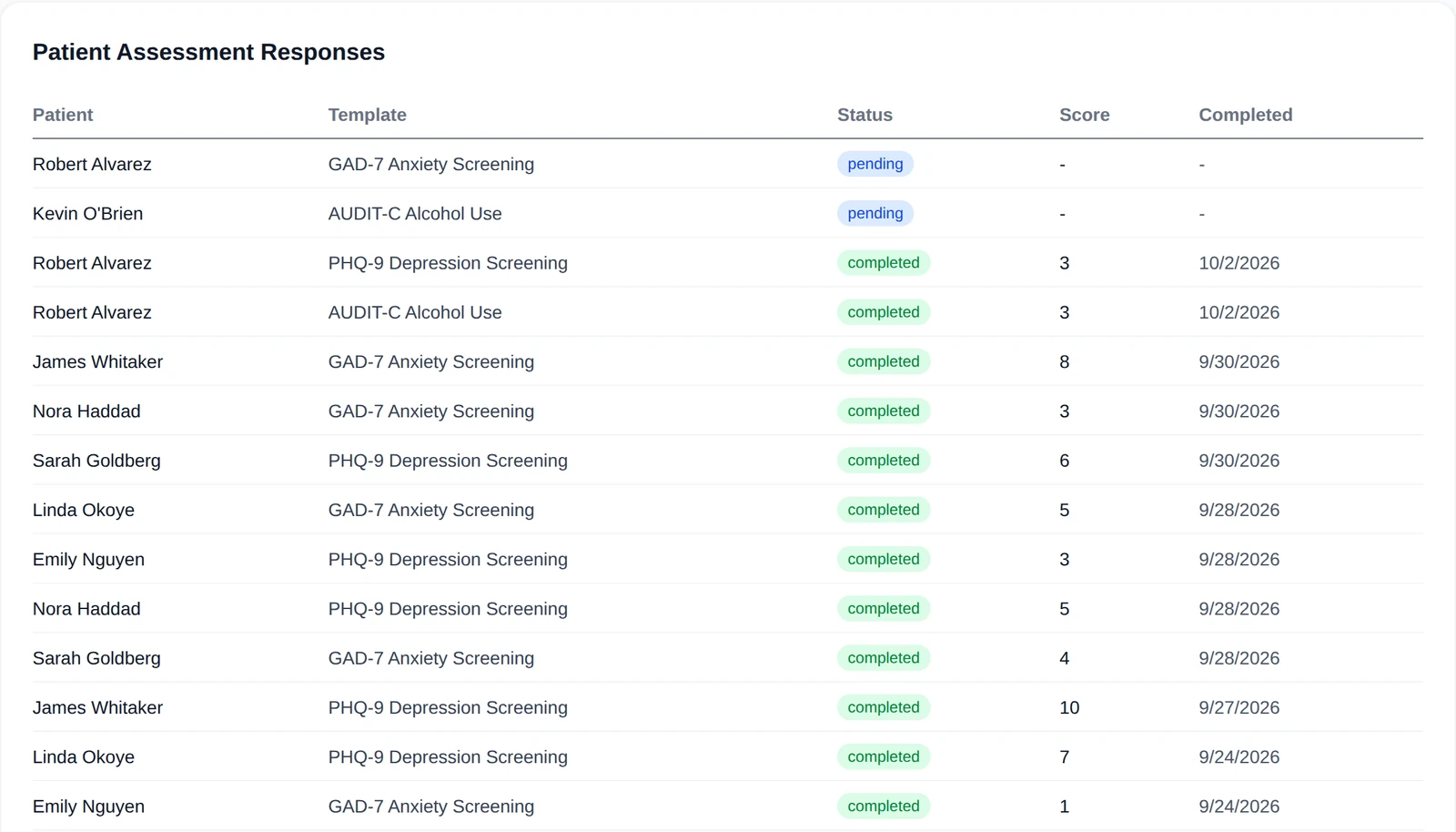
Send questionnaires such as PHQ-9 or GAD-7. Answers are scored on our servers, and each patient's results stay in their record with the date.
- Build your own questionnaires
- Scores over time, per patient
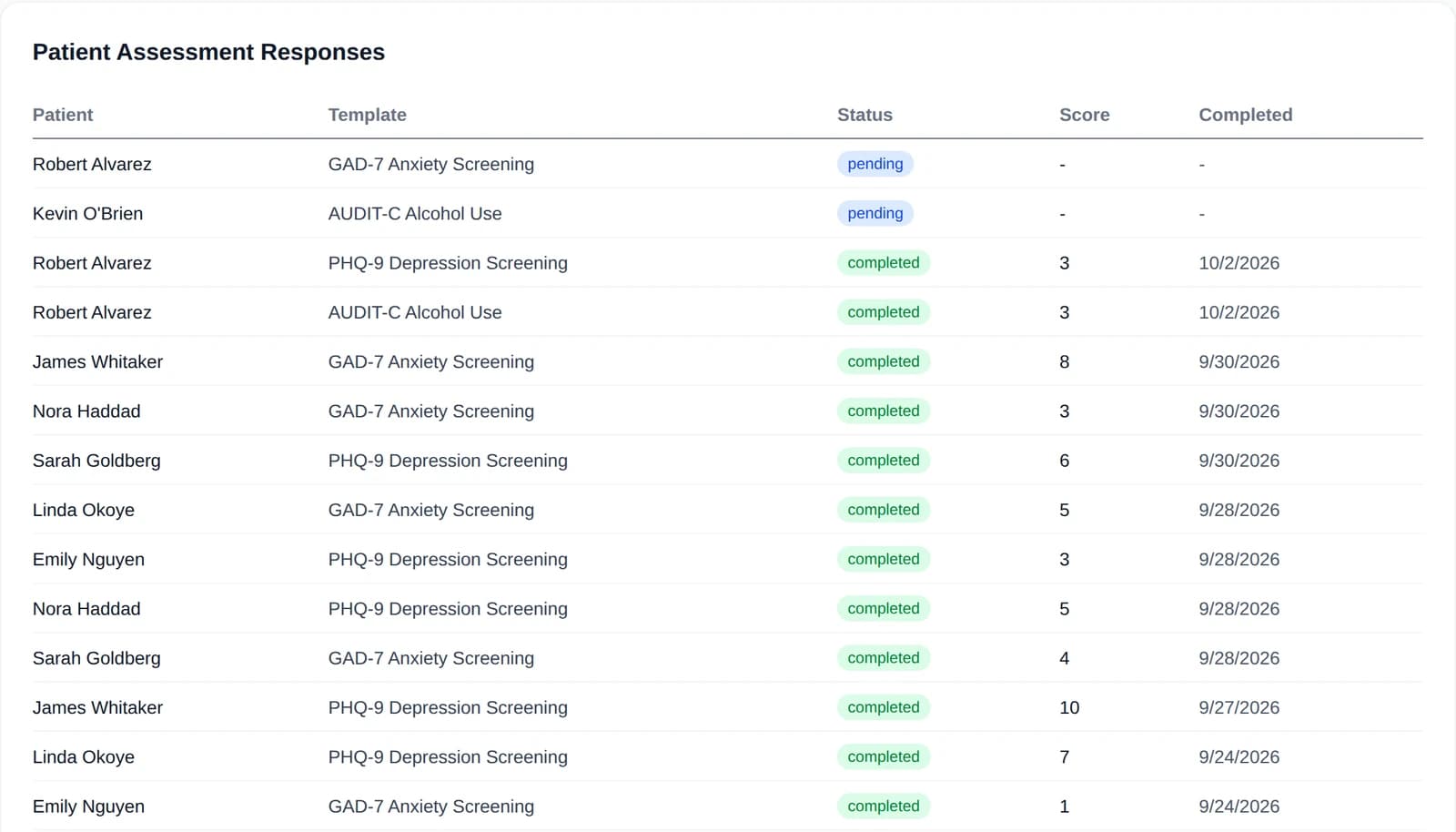
Assessments are scored on the server. - Step 6
Messages, with the doctor's AI proxy
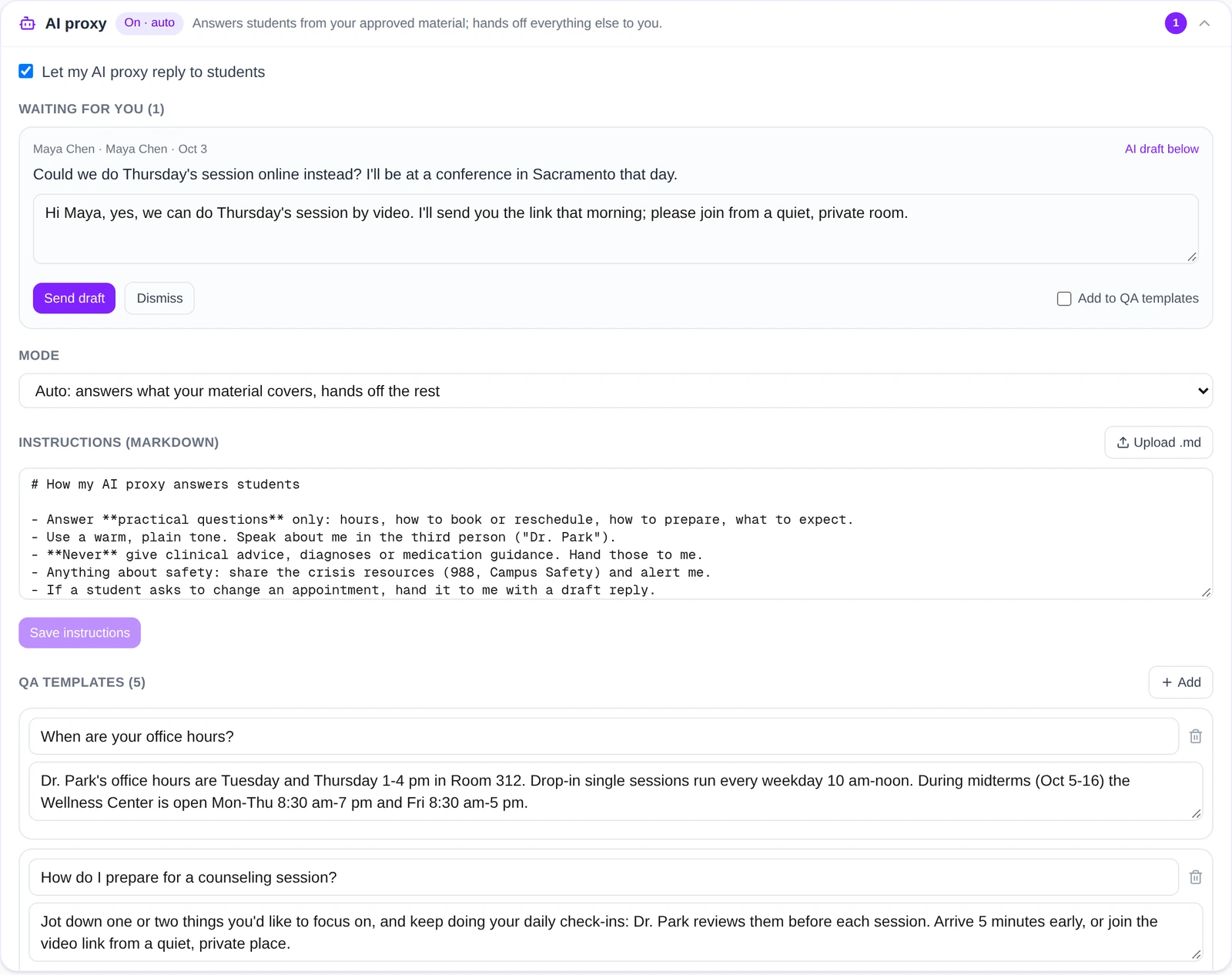
Patients message their care team inside CareNivoa. If the doctor turns on an AI proxy, it answers routine questions from the doctor's instructions, approved answers and reference documents, and cites them. Anything else becomes a question for the doctor, with a draft reply.
- Modes: answer, draft only, or only outside office hours
- Every AI reply is labelled as AI
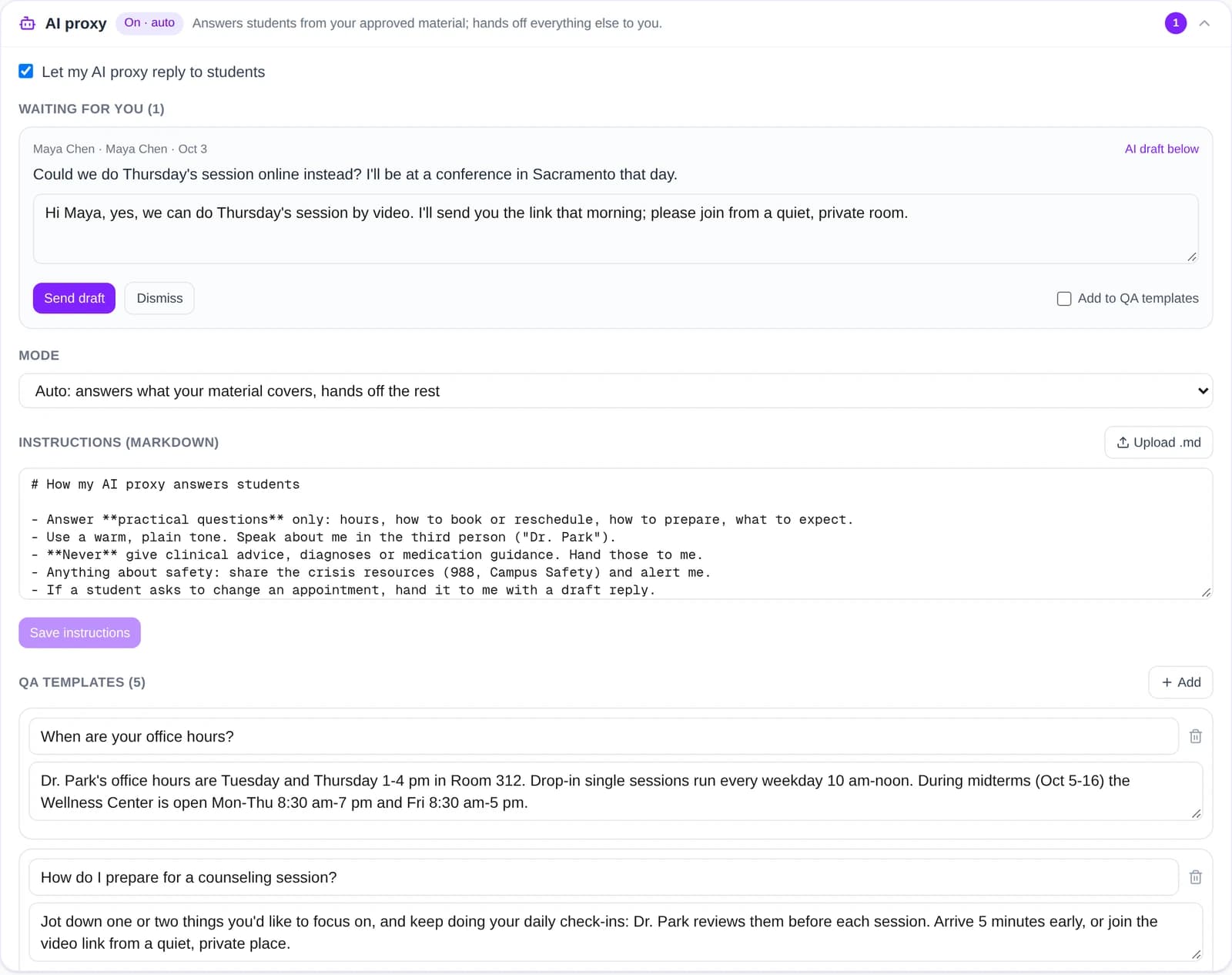
The doctor decides what the proxy may answer. - Step 7
Clinic documents you can search and ask

Doctors upload protocols, guidelines and lab sheets (PDF, Word, PowerPoint, Excel, CSV, text or Markdown). The files are kept in object storage on our own servers, and our own embedding service indexes their text, so a search by meaning finds the right passage with its section and page. Ask a question about a document and the AI answers from that document, citing the sections it used; the answer is for the clinician to check against the source.
- Only the account that uploaded a document can open, search or delete it
- Answers cite the document's sections and are for the clinician to check
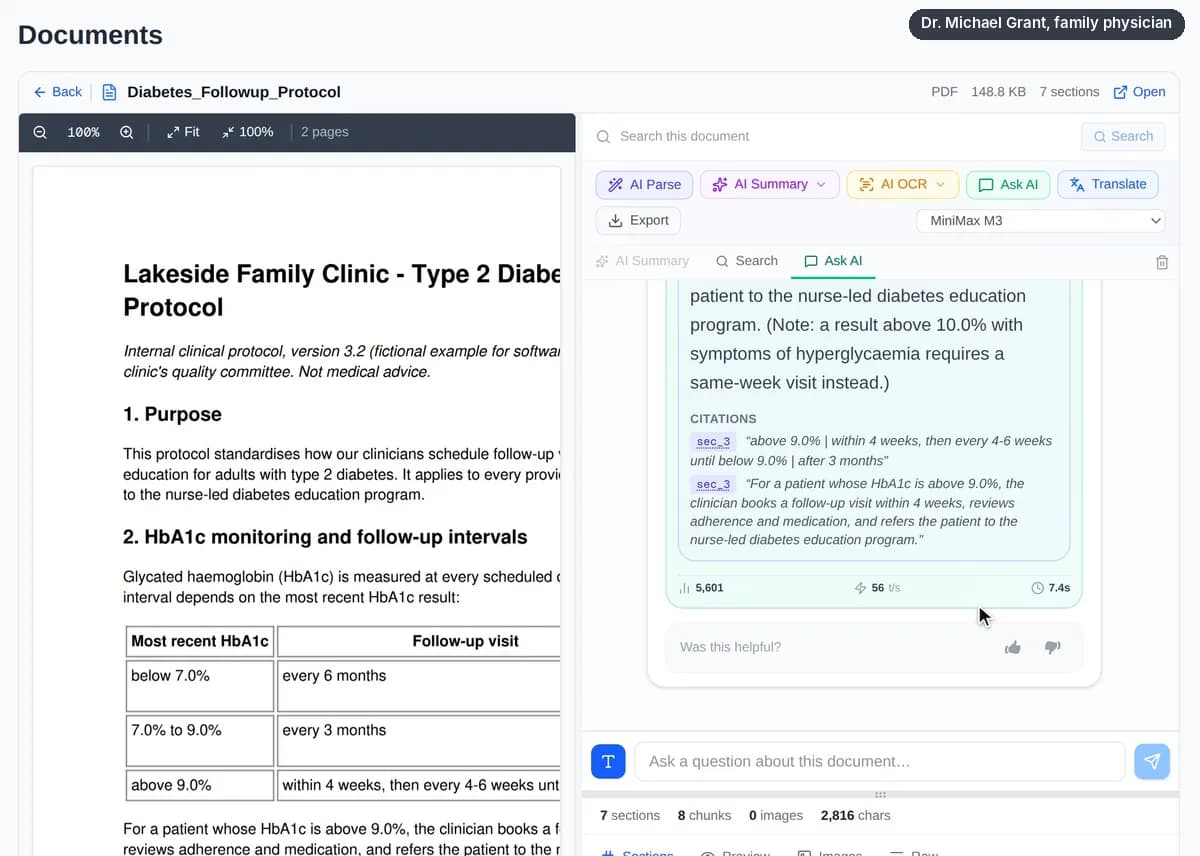
▶ Live demoA doctor uploads a protocol and a lab sheet, finds the passage by meaning, and asks the document; the answer cites its sections for him to check. - Step 8
Search the literature and keep what matters
The Search tab looks up the web, health news and research papers (PubMed, Europe PMC) through third-party search providers, and a reranker on our own servers puts the closest matches first. A doctor ticks the results worth keeping, from any tab, and saves them as one note in Documents with each source's link and the page text that could be read, searchable there like any document. Optionally the AI adds a short summary that cites every source by number. It is a starting point for the clinician to verify, not a guideline and not a complete review.
- Search queries go to third-party providers: leave patient identifiers out of them
- Saved notes are private to the doctor, like every document
- Summaries cite their sources [n] and are for the clinician to check
![Recording: Dr. Grant opens Search from the sidebar and types “2024 ADA guidelines HbA1c targets older adults”. About 13 seconds later the web results appear, marked as sorted by relevance by the AI reranker, with the ADA chapter “13. Older Adults: Standards of Care in Diabetes—2024” first. He selects it and a second copy of the same chapter, switches to Med Papers, clicks the example “HbA1c targets older adults” and selects a 2024 study on oral frailty and HbA1c in older adults. He clicks “Save + AI summary”; about 21 seconds later the note is saved to Documents and a summary appears with key points citing sources [1] to [3], a list of the sources and a reminder to check each statement against its source. He opens the note in Documents, where the sources and the summary are kept.](/_next/image?url=%2F_next%2Fstatic%2Fmedia%2Fclinic-anim-search-poster.0h3t8nbhoxsm-.webp&w=3840&q=75)
▶ Live demoA doctor searches a clinical question, keeps the sources that matter in one note in Documents, and gets a summary that cites them, for him to verify. - Step 9
Connect your existing EHR (FHIR)
A group admin enters the EHR's FHIR address and CareNivoa's client ID there, and CareNivoa checks the EHR's SMART on FHIR configuration. Each clinician then signs in to the EHR with their own account and picks a patient: problems, medications, allergies, immunizations, vitals and labs are imported, marked with their source. Where the EHR allows writing, a reviewed visit summary goes back as a progress note.
- Shown with a public SMART on FHIR test sandbox and synthetic patients
- Connecting a production EHR such as Epic requires registering the app with the EHR vendor and approval by your organisation
- Refresh, disconnect or delete imported data at any time; each step is written to the audit log
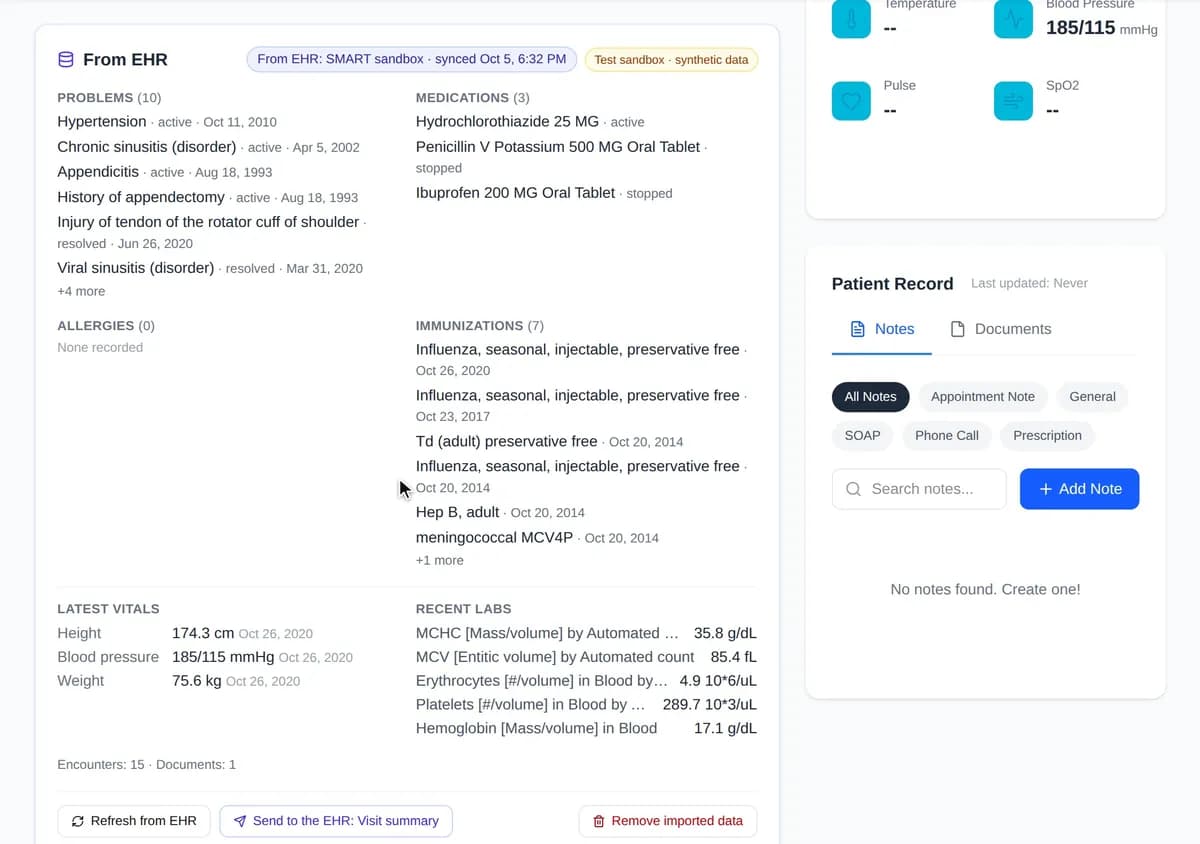
▶ Live demoPilot demo with a public test sandbox and synthetic patients; not a production Epic connection.
![Recording: Dr. Grant opens Search from the sidebar and types “2024 ADA guidelines HbA1c targets older adults”. About 13 seconds later the web results appear, marked as sorted by relevance by the AI reranker, with the ADA chapter “13. Older Adults: Standards of Care in Diabetes—2024” first. He selects it and a second copy of the same chapter, switches to Med Papers, clicks the example “HbA1c targets older adults” and selects a 2024 study on oral frailty and HbA1c in older adults. He clicks “Save + AI summary”; about 21 seconds later the note is saved to Documents and a summary appears with key points citing sources [1] to [3], a list of the sources and a reminder to check each statement against its source. He opens the note in Documents, where the sources and the summary are kept.](/_next/static/media/clinic-anim-search.13wtsa_nmmjts.webp)

Screenshots and recordings show the CareNivoa product with demo data; every name in them is fictional.
What you can do
Everything a clinic team and its patients use day to day.
Online booking
Patients book open slots themselves or with the AI scheduling assistant.
Calendar
Every appointment in one calendar, with its status.
Meet Now visits
Record a visit once everyone consents and get a transcript when it ends.
AI visit summaries
Drafted from the transcript or typed notes; the clinician reviews them.
Care plans
Check-ins, logs, medication and exercise check-offs, questionnaires, on a schedule.
Reports with charts
A printable HTML report of a care plan, in one click.
Questionnaires
Send questionnaires and assessments; scores are calculated on the server.
Messages with AI proxies
Secure messages, with an optional AI proxy for routine questions.
Patient records
Notes, vitals, history and documents for each patient.
Documents and search
Upload protocols and lab sheets, search them by meaning, and ask questions with cited answers.
AI agent workspace
Hand off reading PDFs and scans, research and report writing.
Read-aloud and voice
Patients can listen to text and speak instead of typing.
Clinic policies
How message deletion works, whether patients may unlink, document format.
Roles and permissions
The clinic setup comes with two provider roles. A group admin can rename them, add roles and change what each may do.
Doctor
Full clinical access within the clinic.
Can
- Read and write clinical notes
- Run Meet Now visits (recording with consent)
- Assign care plans and check-ins
- Assign questionnaires and screenings
- View care-task reports
- Manage availability and appointments
- Message patients
- Manage the care team
Nurse
Clinical work without changing care levels or the care team.
Can
- Read and write clinical notes
- Run Meet Now visits (recording with consent)
- Assign care plans and check-ins
- Assign questionnaires and screenings
- View care-task reports
- Manage availability and appointments
- Message patients
Cannot
- Set the care level
- Manage the care team
Group admin
A provider who also manages the clinic's settings.
Can
- Edit roles, permissions, terms and policies
- Add and deactivate staff accounts
Patient
Sees only their own records.
Can
- Book, message the care team, complete care tasks
- Give or withdraw recording consent
Cannot
- See clinicians' private notes
- See other patients
Privacy and compliance
Concrete controls, in place in the product today.
Access by role
Patients see only their own records; staff see only their clinic's patients, and each role's permissions narrow that further.
Private notes stay private
Clinicians' private visit notes are never shown to patients.
Consent before recording
Recording only with every participant's consent; uploads are refused without it, withdrawal stops recording, and every change is in the audit log.
Transcription on our servers
By default. A third-party AI service is used only if your clinic chooses it.
AI labelled, people decide
Summaries are drafts a clinician reviews. Every AI message is labelled, and a proxy answers only from approved material it can cite.
Crisis messages go to people
A message about self-harm skips the AI, shows 988 and 911, and alerts the provider.
No public file links
Files are sent only by our server after it checks who is asking.
Encrypted in transit and at rest
HTTPS everywhere, and sensitive notes, messages, visit summaries and answers are encrypted in our database (field-level).
Audit trail and backups
Changes to records are logged, and the database is backed up every day.
Your clinic's policies
Message deletion, patient unlinking and document format are set per clinic.
Patients control their own proxy
A patient's own AI proxy is off until they turn it on, and shares only what they chose.
Account protection
Changing a password signs out every other session, a new email takes effect only after a code is confirmed, and login attempts are rate-limited.
We describe the controls the product has today rather than certifications. Need more detail for your review? Contact us
Frequently asked questions
Does the AI make clinical decisions?
No. It offers open times, drafts visit summaries for the clinician to review, and answers routine messages only from material the doctor approved. Diagnoses, treatment and care plans are the clinician's.
Do we have to record visits?
No. Recording starts only after consent, and a visit without consent simply isn't recorded. The AI can also draft a summary from typed notes.
Where are recordings transcribed?
On our own servers by default. A third-party AI transcription service is used only if your clinic opts in.
What happens when a patient messages after hours?
With the proxy's off-hours mode, routine questions get an answer from approved material and everything else waits for the doctor as a question with a draft. A message about self-harm always skips the AI, shows crisis resources and alerts the provider.
Can we change the roles and wording?
Yes. A group admin edits roles, permissions, terms and policies in the group settings.
Where are uploaded documents kept, and who sees them?
Files are kept in object storage on our own servers and are indexed for search by our own embedding service. Only the account that uploaded a document can open, search or delete it. When you ask the AI about a document, or run AI Summary or AI OCR on it, and when a scanned page or an image is read at upload, its text (or page images, for OCR) goes to the AI model your organisation uses, which can be a third-party service; the document details show which one read it.
Does CareNivoa work with Epic or our current EHR?
It connects through SMART on FHIR, the standard API that certified US EHRs, Epic and Oracle Health among them, are required to offer for reading patient data. We have built and tested it against a public test sandbox with synthetic patients. Going live with your EHR means registering CareNivoa with the EHR vendor and your organisation approving the app. Reading comes first; sending notes back depends on what your EHR allows. CareNivoa is not yet listed in any EHR vendor's app marketplace.
See CareNivoa with your clinic's workflow
We'll walk through booking, a recorded visit, the AI summary and a care plan, set up with your roles.
Other use cases
- Counseling and health centers in collegesStudent wellness centersScreening, stepped care and care teams, with AI proxies that students control and a crisis safety net.See the workflow
- Music, sports, tutoring and course programsTeachers, coaches and studentsPractice check-ins, office hours, an AI proxy for course FAQs and progress reports.See the workflow