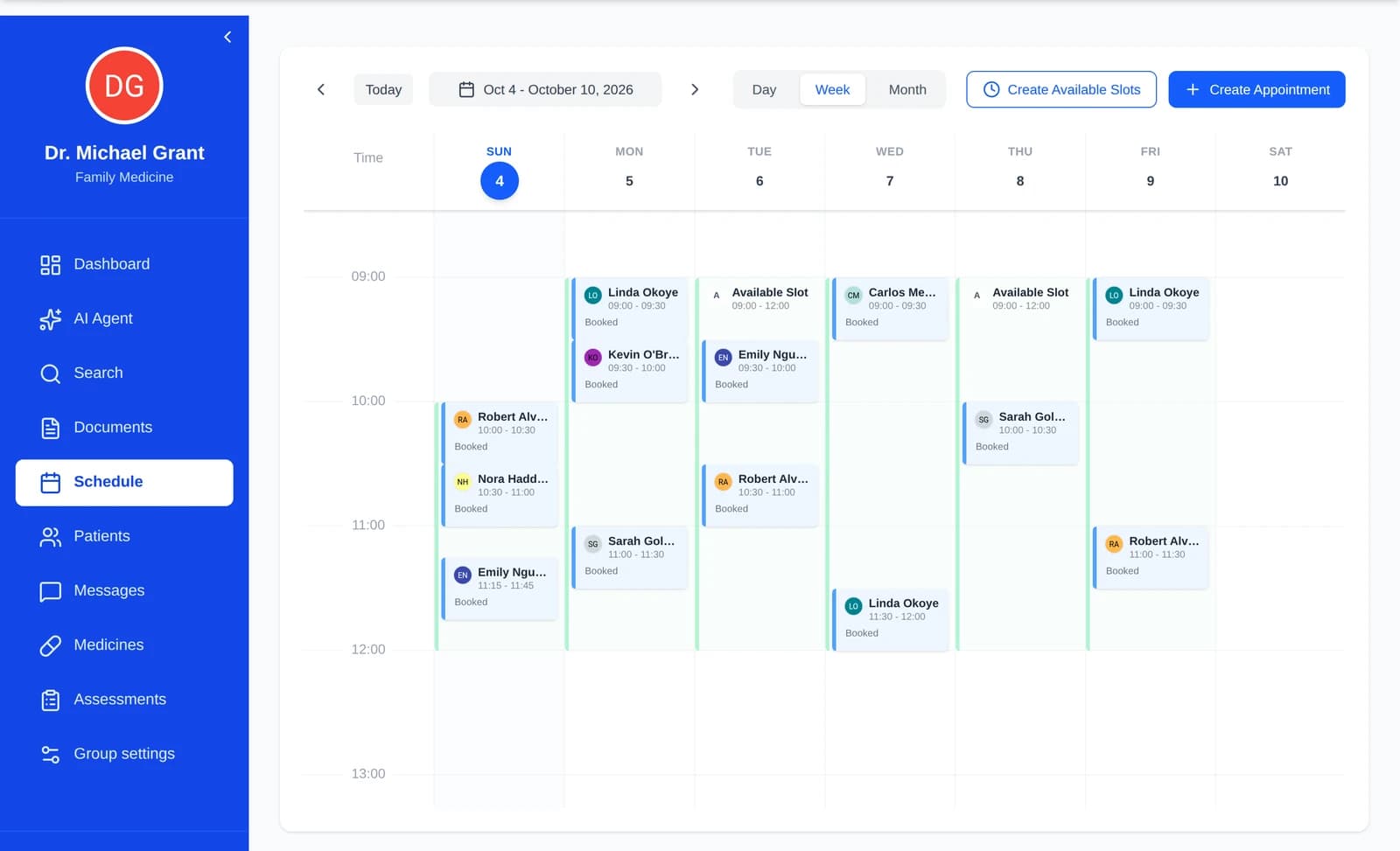
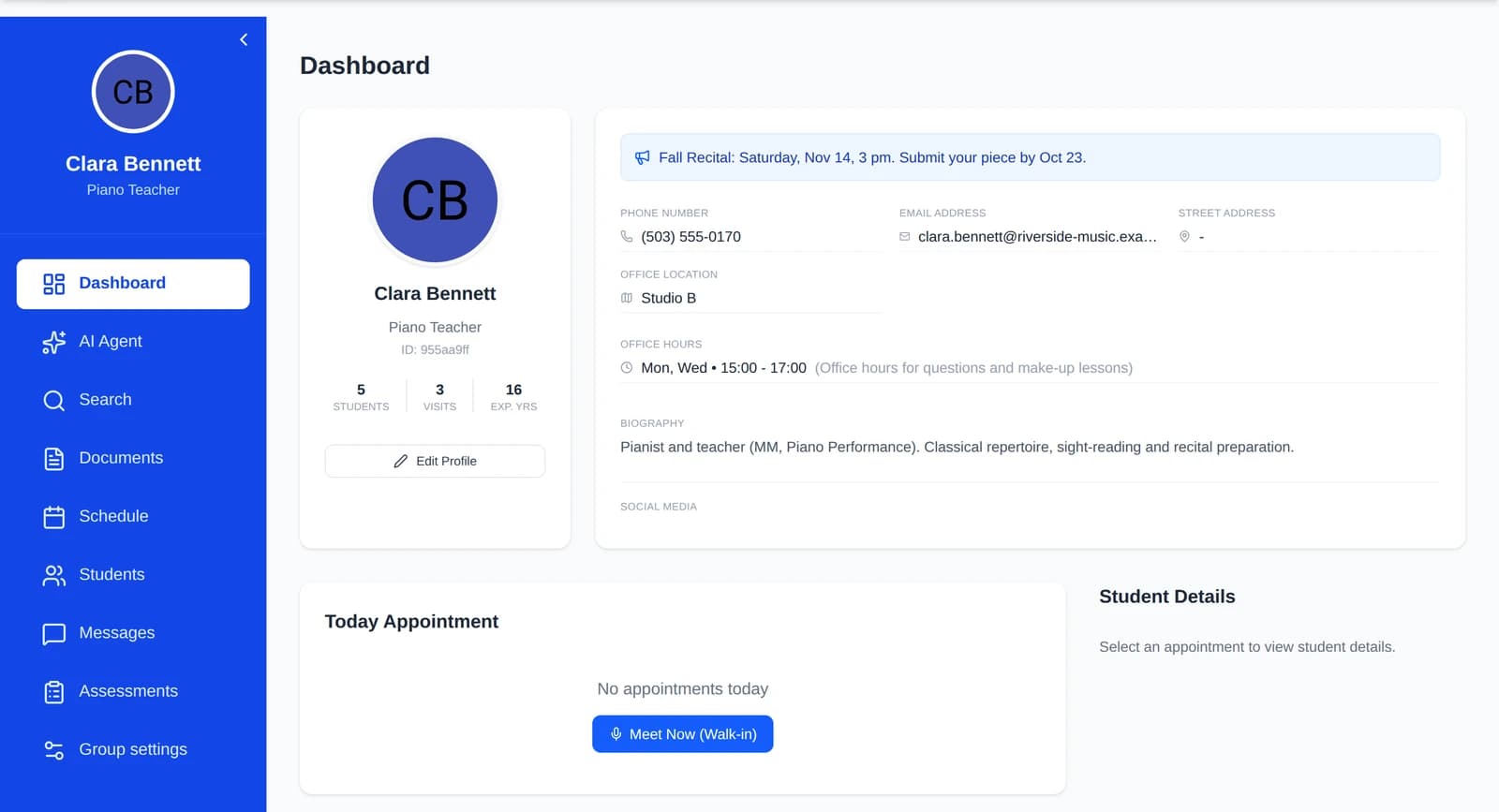
Stepped care for every student: AI handles the routine, your team decides
Screening, stepped care, care teams and follow-up in one place, in your center's own terms. AI proxies answer routine questions and check-ins within limits the provider and the student set, and messages about self-harm always go to people.
- Screening scores suggest a care level; a provider decides
- Counselor, nurse, case manager, health coach and peer supporter in one care team
- Students choose what their AI proxy may share
Three kinds of accounts, one platform
Everyone signs in at the same place and gets a dashboard for their part: the center admin sets the center up, the care team works with students, and students follow their plan.
Center admin
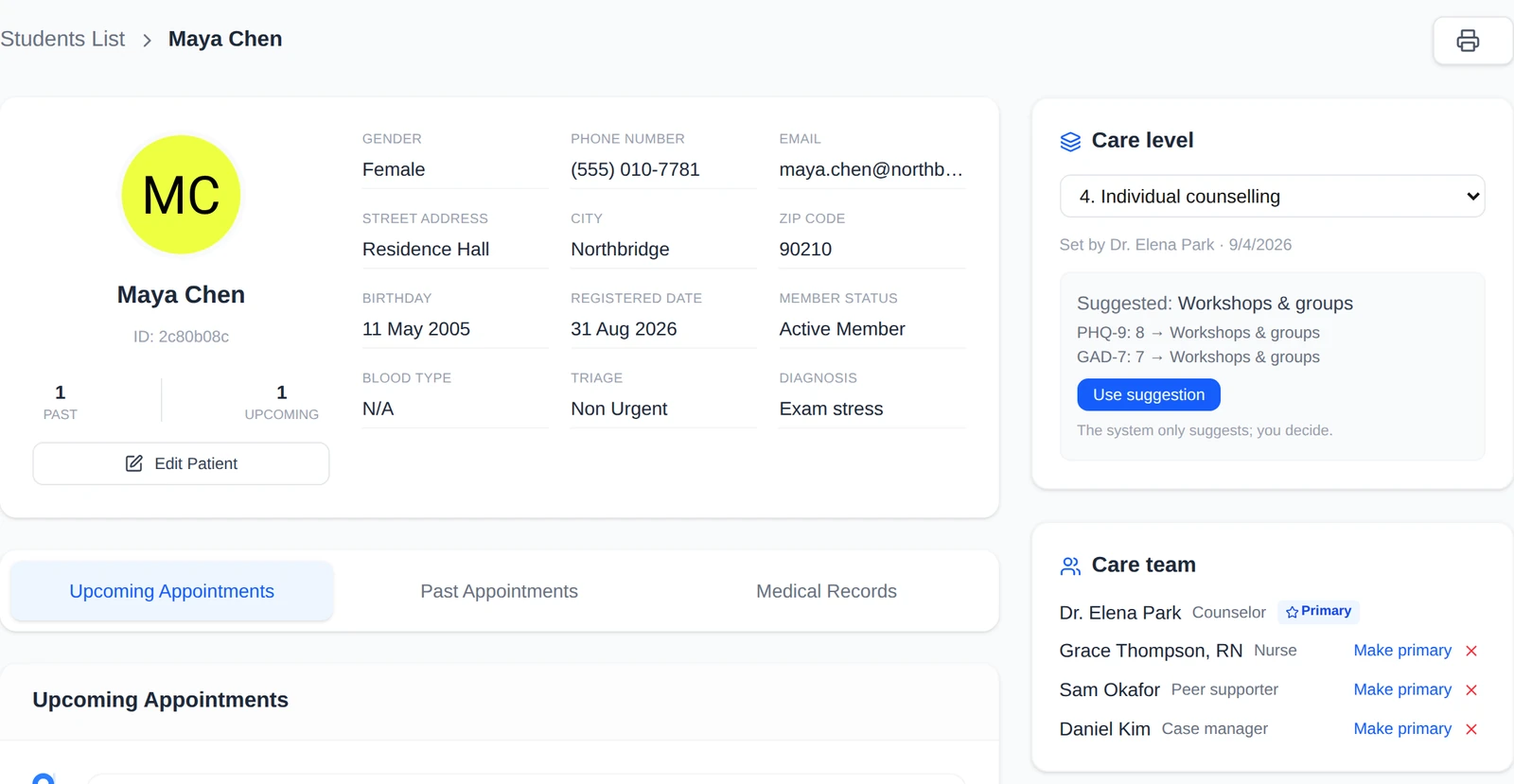

The group admin who sets up the center. It is a provider account with admin rights, so Dr. Park also counsels students.
- Terms: what the center calls its students, providers and care team, in English and Chinese
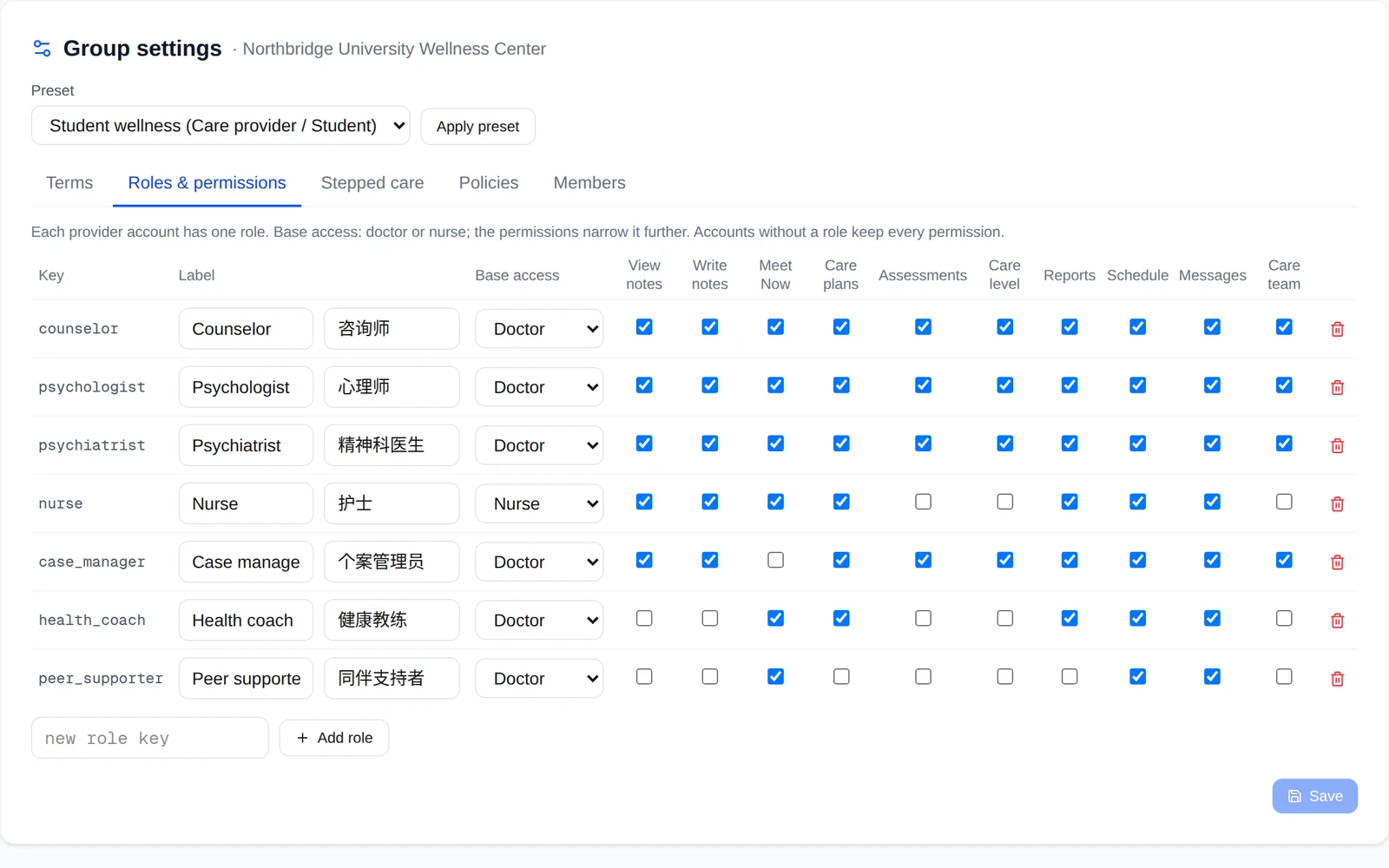
- Roles and permissions: seven provider roles to start with; rename them, add roles or change any permission
- Stepped care: the care levels and the screening-score rules that suggest a level
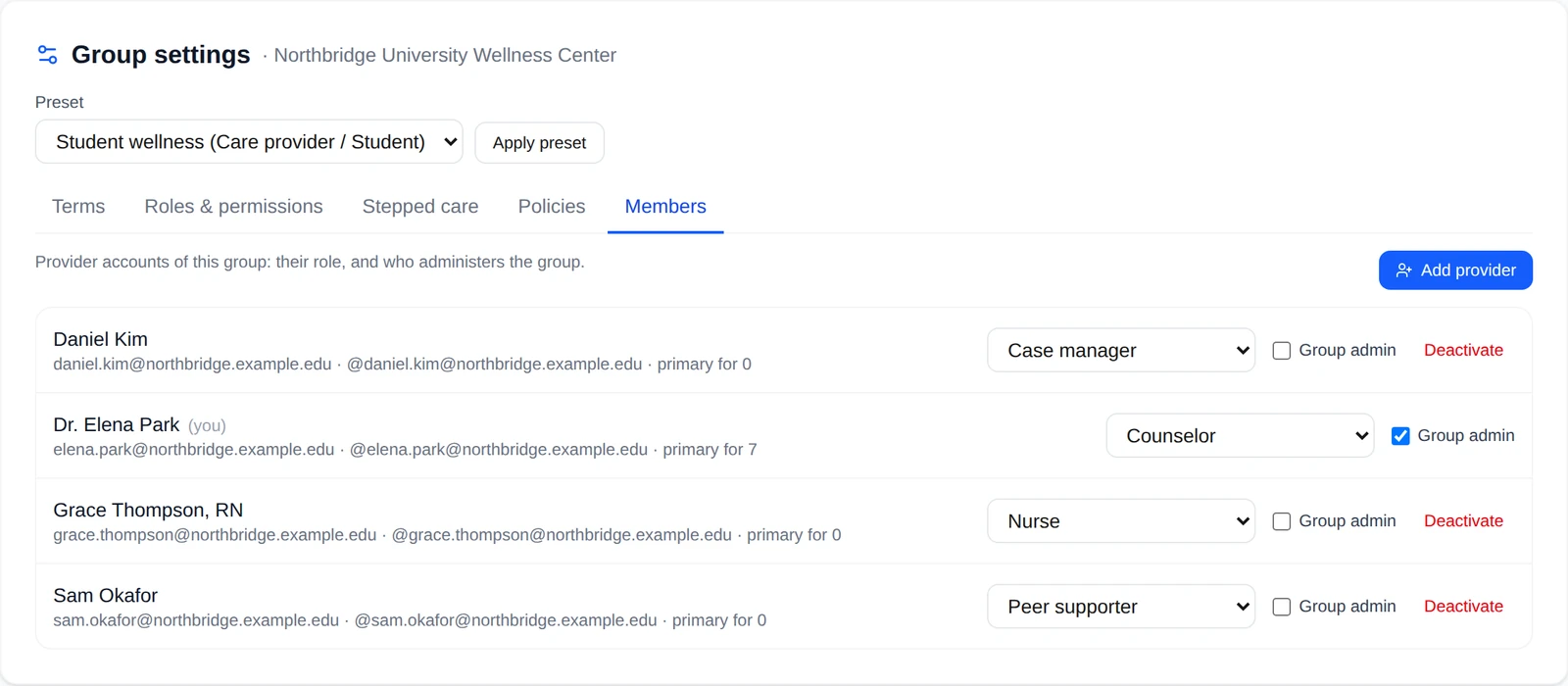
- Policies and members: how conversations are deleted, whether students may remove their provider, the AI document format; provider accounts, group admins and invite links with a role, expiry and use limit
- EHR connection: link the center's electronic health record through its standard FHIR API (SMART on FHIR)
When one installation serves several centers, a site administrator can open the same settings for each of them.
Care team
Counselors, psychologists, psychiatrists, nurses, case managers, health coaches and peer supporters.

- Dashboard and schedule: today's visits with Meet Now, the week's calendar and available slots

- Students: each record shows the care level, the suggested level and the care team
- Messages: their own AI proxy answers routine questions from approved material and hands everything else to them
- Assessments and care plans, Documents, Search and the AI Agent from the same menu
- Each role works within its permissions: a nurse sees a student's care level but doesn't set it
Student
Students who use the center, on their own dashboard.


- Today: check-ins, logs and questionnaires such as PHQ-9 from the care team, with a 14-day history
- Appointments: upcoming and past visits; book with the scheduling assistant or on the calendar
- Messages with the care team, and their own AI proxy: the student chooses what it may share
- Join with the center's invite link; one account can belong to more than one group
How it works
From the first screening to follow-up, organised as stepped care: the least intensive help that works first, more when it's needed.
- Step 1
Intake and screening
Assign intake and screening questionnaires such as PHQ-9, GAD-7 and the C-SSRS screener. Students complete them from their own dashboard, and the scores are calculated on our servers.
- Students answer on their own dashboard
- Results are kept with their date
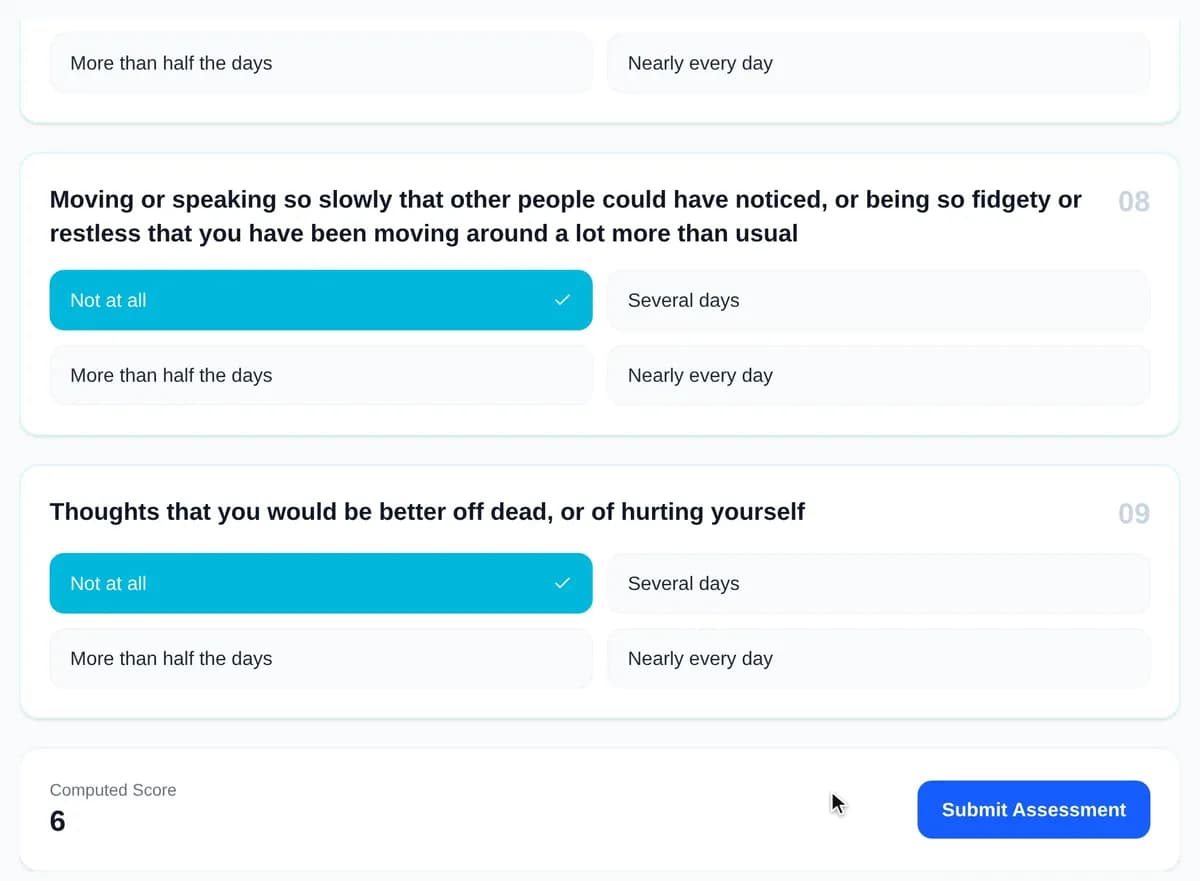
▶ Live demoMaya answers her PHQ-9; the score is calculated and kept with the date. - Step 2
Stepped care: a suggestion, a human decision
Your levels run from self-help to intensive care or referral. The latest PHQ-9, GAD-7 and C-SSRS scores suggest a level, and a positive C-SSRS screener is flagged as urgent. A provider with the right permission sets the level; the system never does.
- Levels and score rules are yours to edit
- Who set the level, and when, is recorded
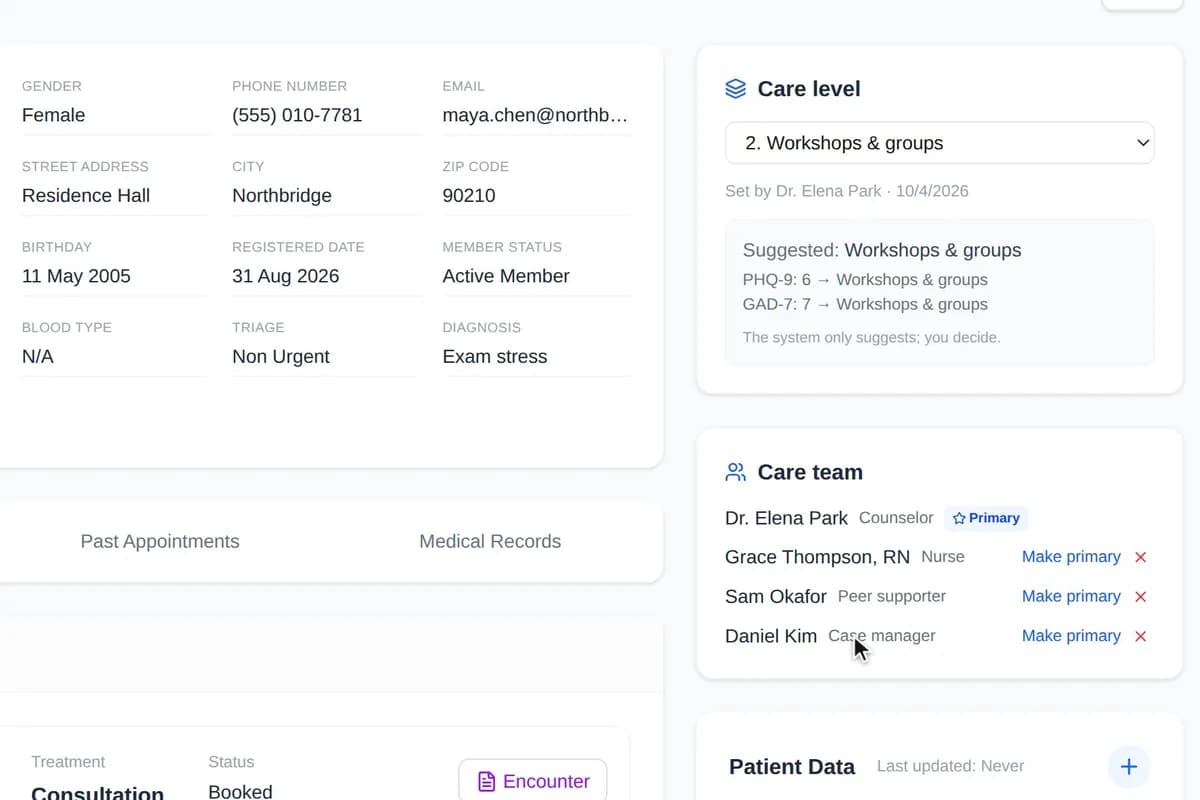
▶ Live demoThe counselor applies the suggested level, and who set it is recorded; then she adds a case manager to the team. - Step 3
A care team around each student
A student can have several providers: a counselor as the primary, plus a nurse, a case manager, a health coach or a peer supporter. Each sees what their role allows; a peer supporter, for example, never sees clinical notes.
- One primary provider; others join or leave the team
- The student sees who is on their team
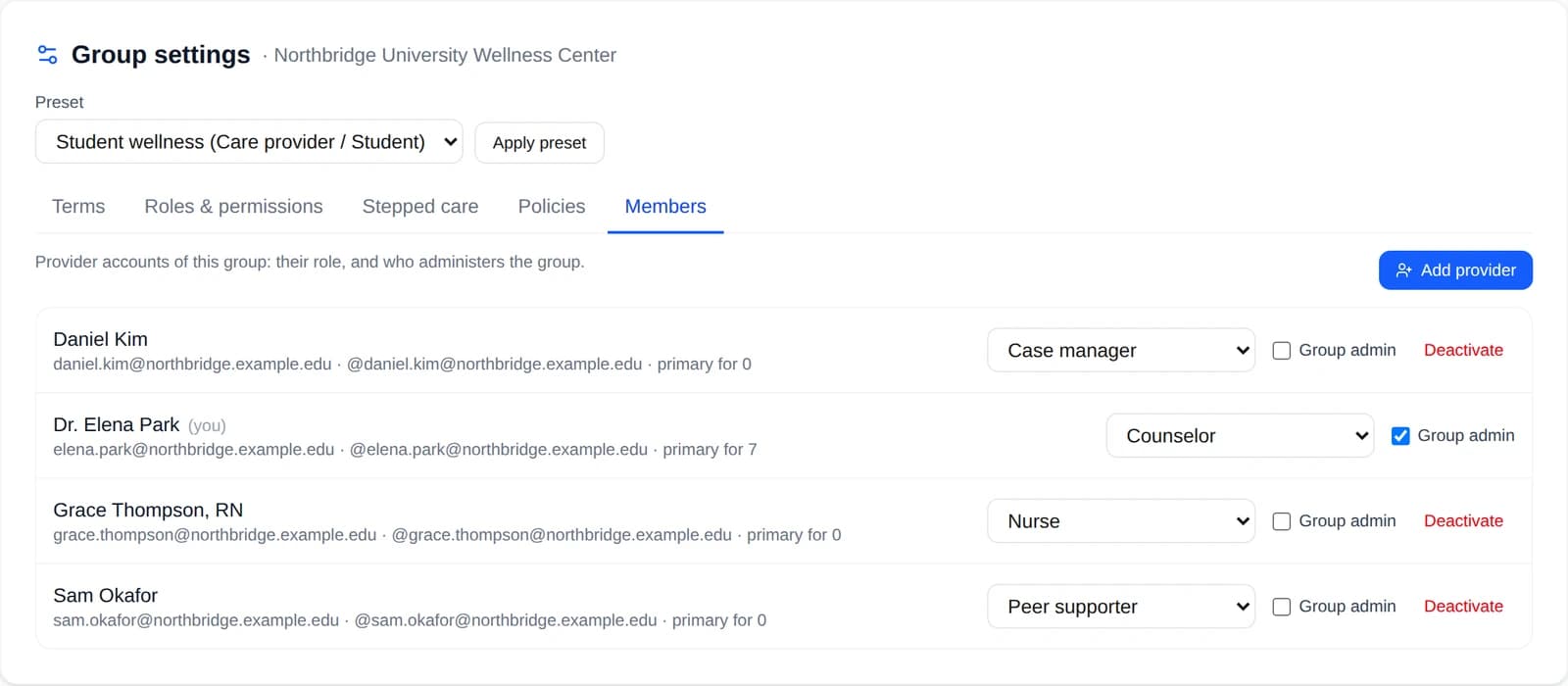
The center's providers and roles; a student's care team is drawn from them. - Step 4
Follow-up between sessions
Care plans turn into recurring check-ins: mood, sleep, a short journal, questionnaires. The student checks them off each day, and a one-click report shows the trends.
- Repeat PHQ-9 or GAD-7 to measure progress
- Printable report with charts
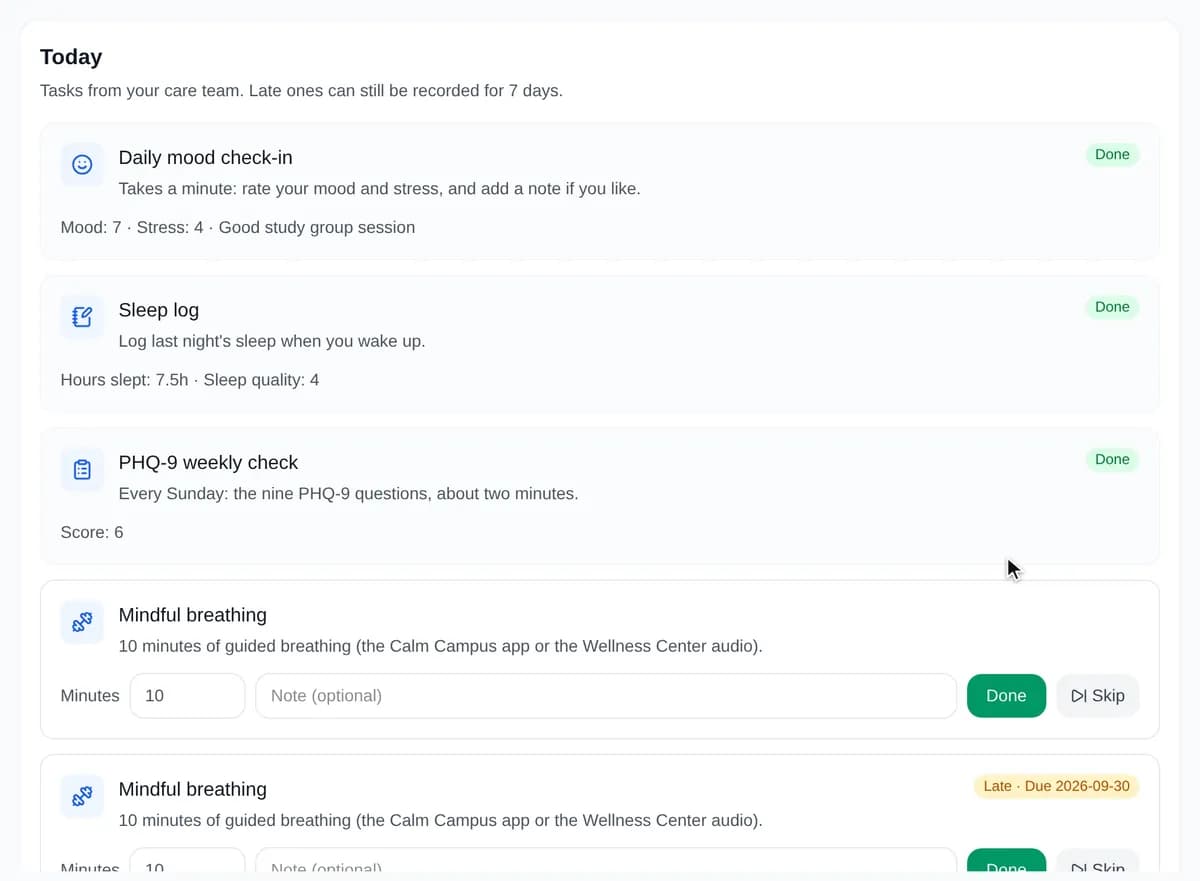
▶ Live demoMaya completes her check-in and sleep log; the history and streaks update. - Step 5
AI proxies in messages



The counselor's proxy answers routine questions (hours, how to prepare, rescheduling) from material the counselor approved and hands the rest over as a question with a draft. When a provider asks how a student is doing, the student's proxy answers only from what the student chose to share, with dates, and asks the student when the data is missing or more than 7 days old.
- Every AI message is labelled as AI
- Answers cite their sources
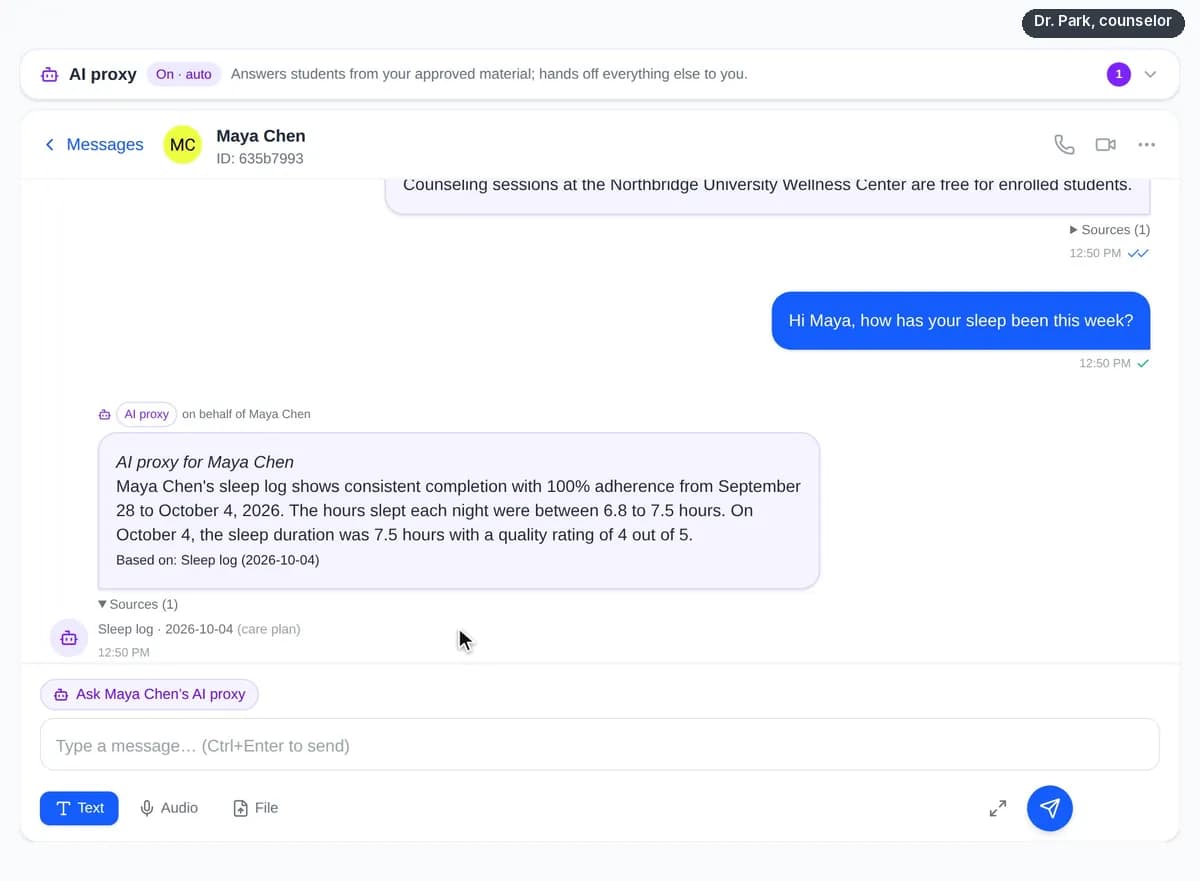
▶ Live demoBoth proxies at work: every answer is labelled as AI and shows its sources and dates. - Step 6
The student decides what is shared
A student who turns on their proxy chooses what it may draw on: check-ins from chosen care plans, their own answers, assessment scores. Anything not shared stays out of its answers.
- Off until the student turns it on
- Sharing can be changed at any time
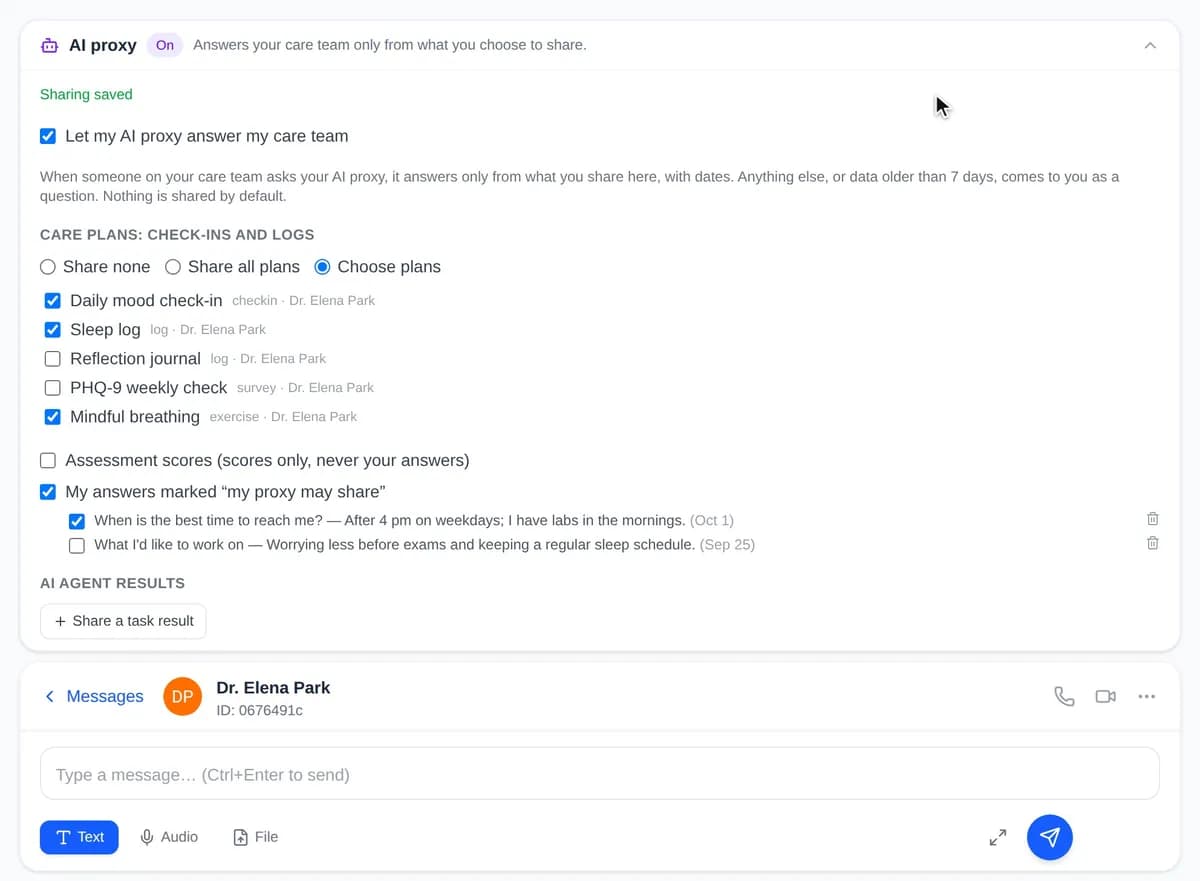
▶ Live demoMaya changes what her proxy may share, and saves. - Step 7
Research and reports with the AI agent

Staff can hand multi-step work to the AI agent: finding recent evidence, reading documents and web pages, and drafting a handout or an HTML report with its sources. The task keeps running while the counselor works elsewhere in the dashboard; running tasks stay at the top of the history, which can be searched and sorted. What the agent writes is a draft: the counselor checks the sources and the content before using it.
- Every step is shown: searches, pages read, files written
- A draft for staff to review, not clinical advice
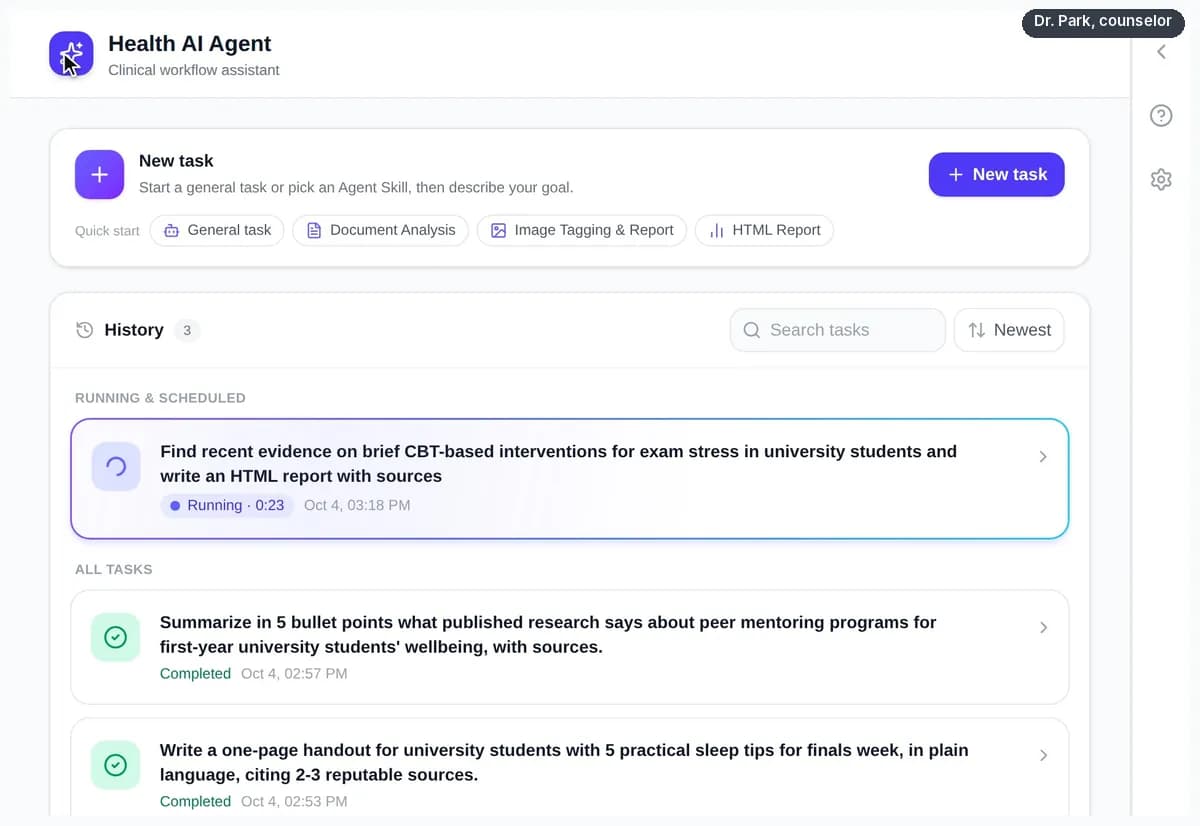
▶ Live demoA counselor hands off an evidence search; the agent searches, reads and writes an HTML report with its sources for her to check. - Step 8

Long-running tasks in a private cloud workspace
For work that takes a while, staff can pick Long-running task and close the page: the task keeps running on the server, in a cloud workspace that only they use, and a notice tells them when it has finished. Its files, and a work log of earlier tasks, stay in the workspace for the next task. The workspace has no internet access; web search runs on the server. Each task has a time limit chosen when it starts, within the limits the administrator sets (at most 24 hours). Only staff can start these tasks, and an administrator turns the feature on. As with every agent task, the results are drafts for staff to check.
- Keeps running after the page is closed, with a notice when it finishes
- One private workspace per staff member in each organisation, with no internet access
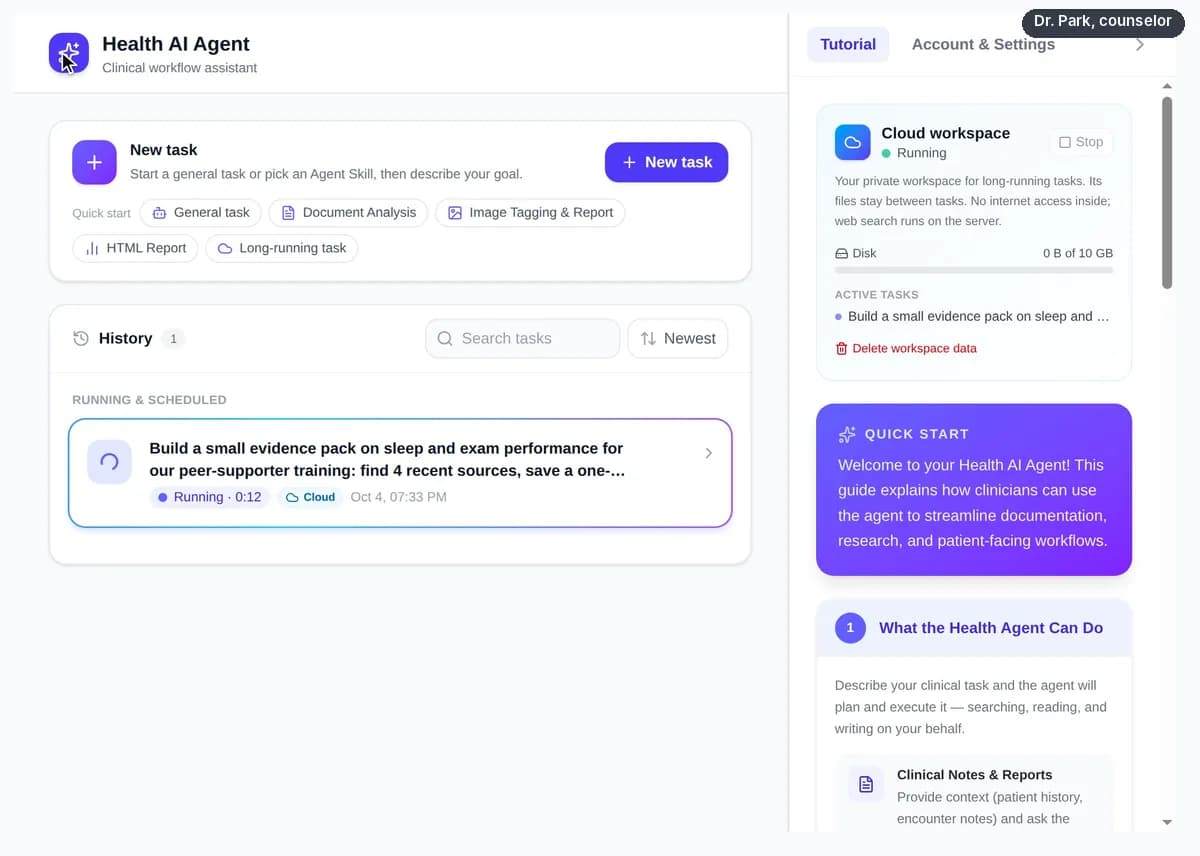
▶ Live demoA counselor starts a long-running task and closes the page; it keeps running in her private cloud workspace, and the finished evidence pack is waiting when she comes back. - Step 9
Center documents: scans, summaries, translations and the agent

Counselors keep flyers, handouts and guides in Documents. A scanned page or a photo is read at upload by the OCR engine your center configures; when that engine is a cloud AI model, the page images go to that model's provider, and each document shows which engine read it. AI Summary turns a long guide into a short overview, Translate gives it in another language with its headings, and any document can be attached to an AI agent task, for example to draft a student handout. Files are kept in storage on our own servers, and only the account that uploaded a document can open it. Summaries, translations and drafts are for staff to check before they are used.
- Each document shows the OCR engine that read it
- Summaries, translations and agent drafts are for staff to check
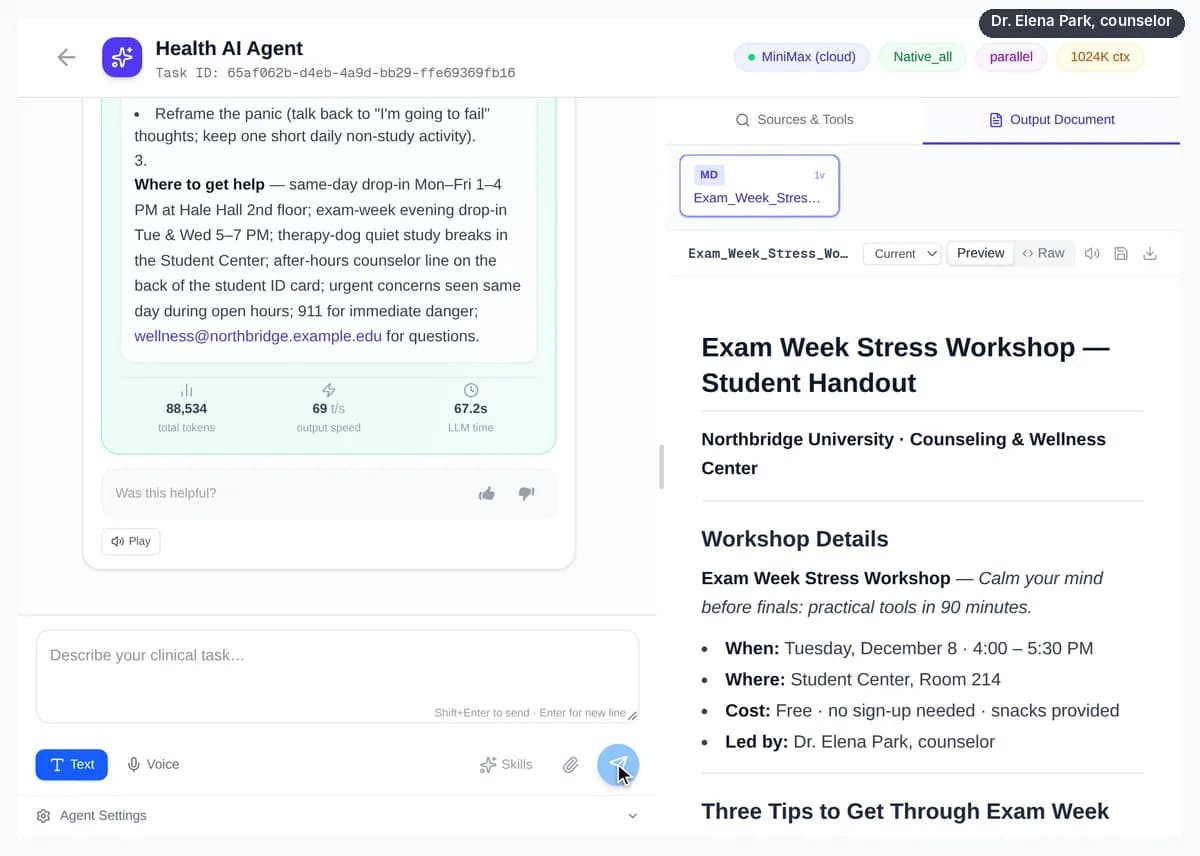
▶ Live demoA scanned flyer is read at upload and names its OCR engine; the center's guide is summarised and translated; both go into an agent task that drafts a handout for staff to check. - Step 10
A crisis safety net
Every student message is checked for self-harm language before any AI sees it, whether a proxy is on or not. On a match the AI is skipped: the student immediately sees 988, 911 and your campus crisis lines, and the provider is alerted.
- Fixed text, not generated by the AI
- Your center's own crisis lines are listed
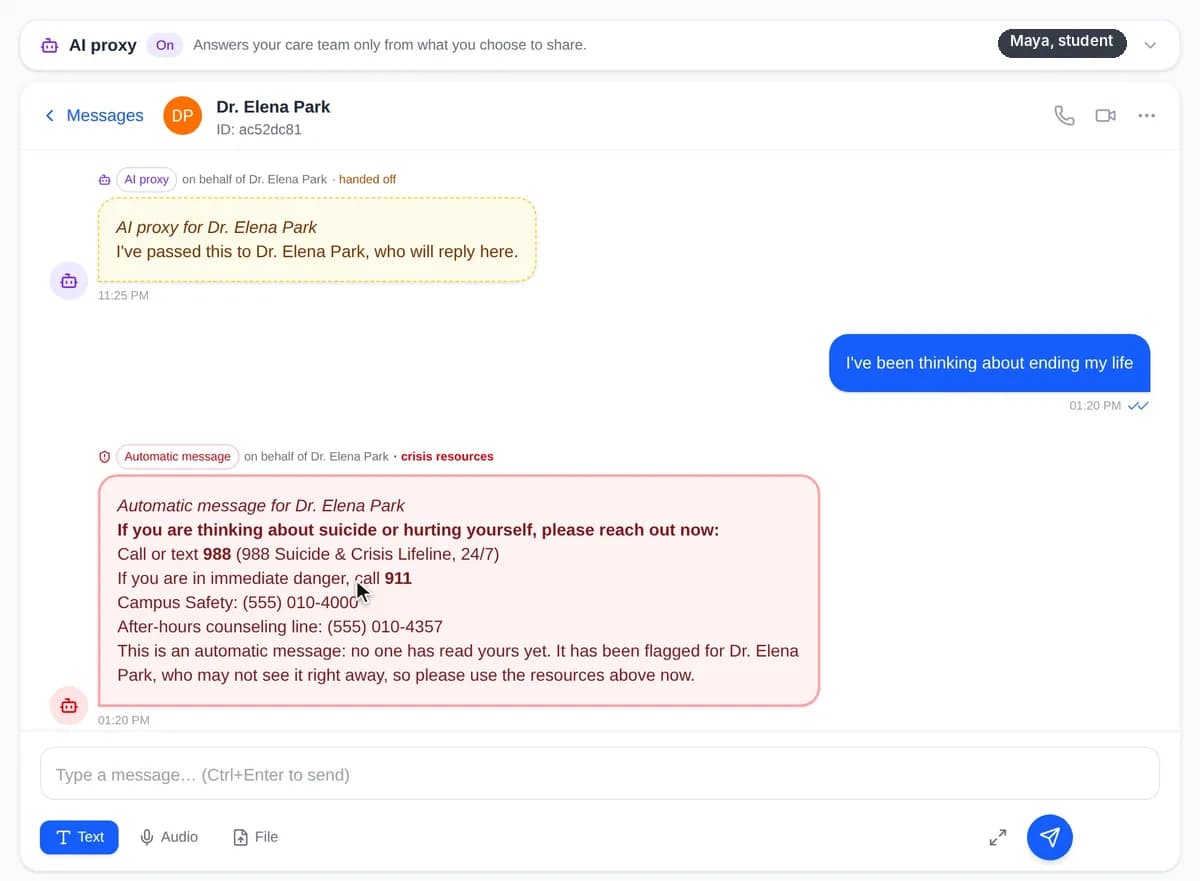
▶ Live demoThe safety net in action: fixed resources for the student, an urgent alert for the counselor. - Step 11
Sessions, recorded only with consent
Meet Now records a session only after every participant agrees: the provider confirms verbal consent, or the student agrees from their own login. Withdrawing consent stops recording, and each change is logged.
- The AI summary is a draft for the provider
- Transcription on our servers by default
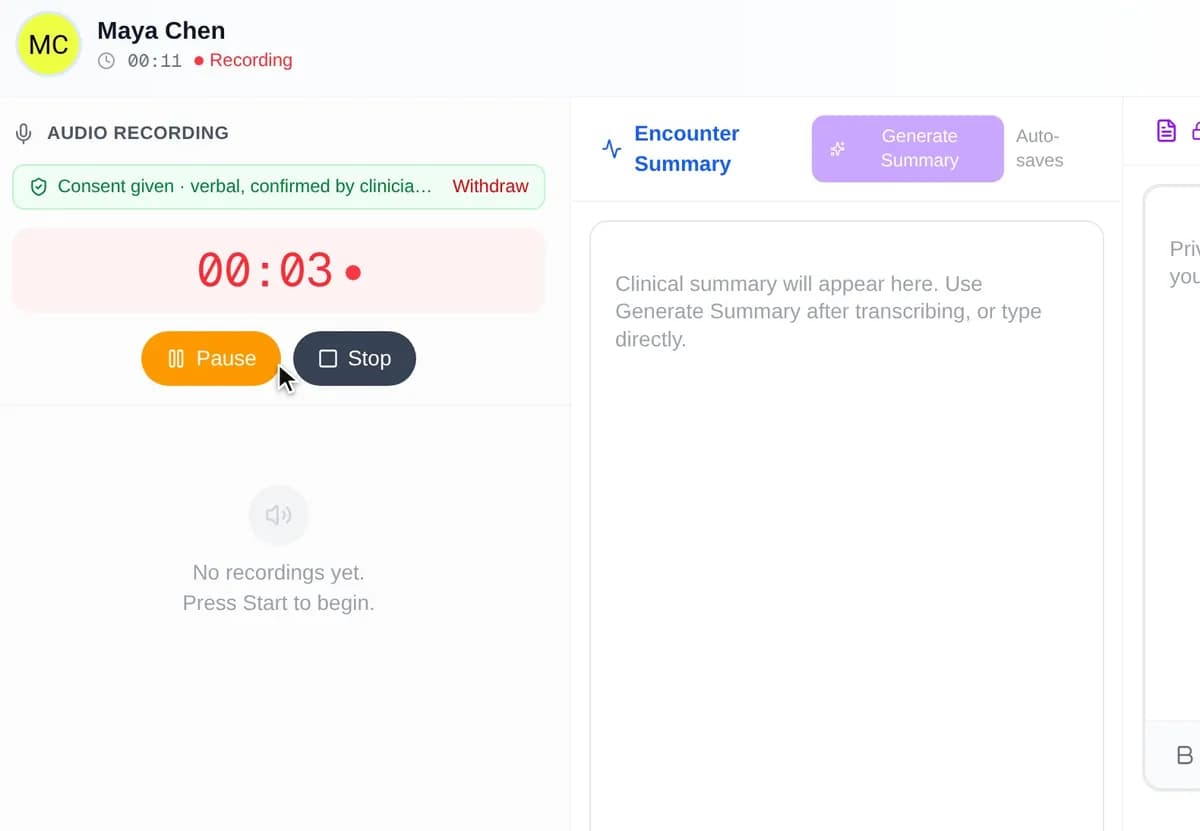
▶ Live demoConsent first: read the script, confirm, then record. - Step 12
Works with your existing systems

CareNivoa sits next to the center's record system rather than replacing it. Where that system offers a FHIR API, clinicians connect with their own EHR sign-in and import what they need; where it doesn't, we start from what it can export.
- FHIR-capable EHRs, for example Epic at a university health system: SMART on FHIR import of problems, medications, allergies and vitals (tested with a public sandbox and synthetic patients)
- Each clinician signs in with their own EHR account; access tokens stay encrypted on our servers and never reach the browser
- Systems without a FHIR API: start with a FHIR file import; CSV or HL7 v2 feeds are scoped with your IT team and vendor
- A production connection needs the EHR vendor's app registration and your institution's approval
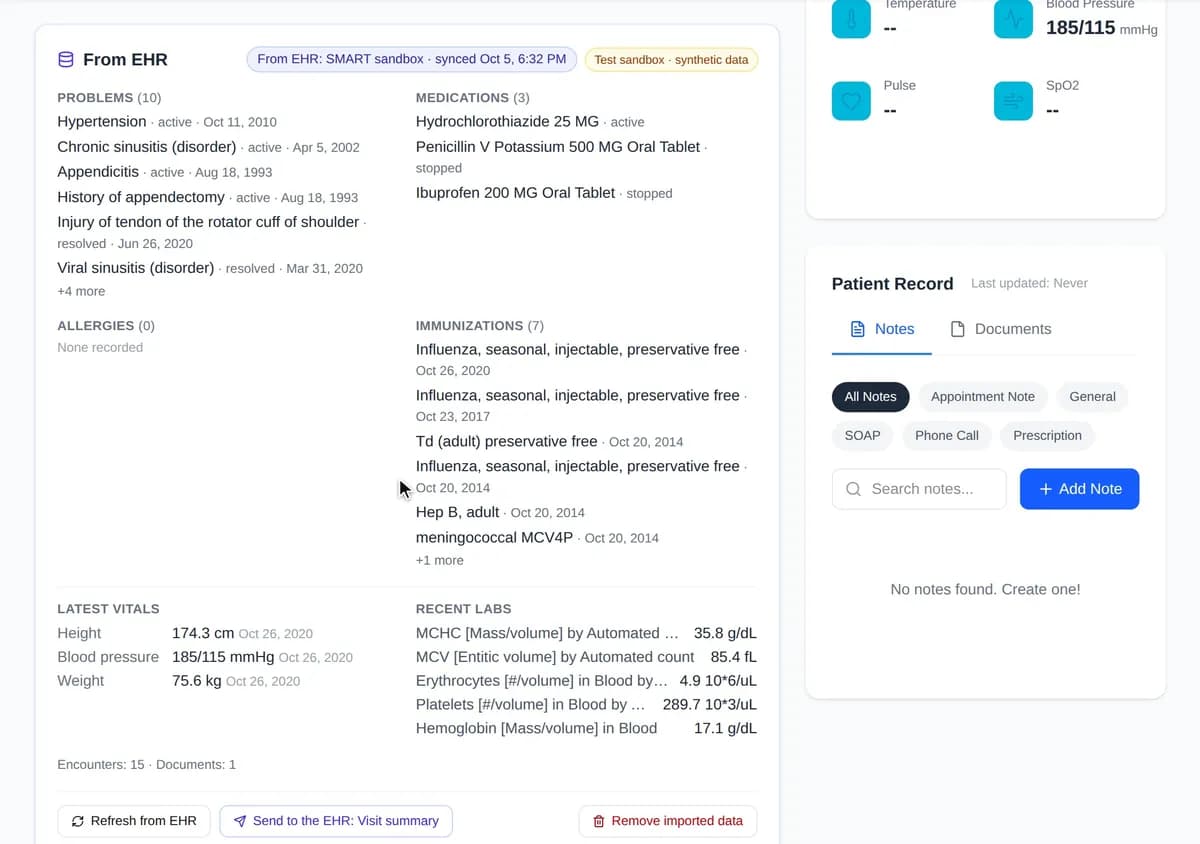
▶ Live demoPilot demo with a public test sandbox and synthetic patients (recorded with the clinic demo account); not a production connection to any campus system.
Screenshots and recordings show the CareNivoa product with demo data; every name in them is fictional.
What you can do
Set up for a center, in the center's own words: students and care providers, not patients and doctors.
Screening questionnaires
PHQ-9, GAD-7, the C-SSRS screener or your own forms, scored on the server.
Stepped care
Your levels and score rules; suggestions a provider confirms.
Care teams
Several providers per student, one of them primary.
Provider AI proxy
Answers from approved material, hands off the rest with a draft; answer, draft-only or off-hours mode.
Student AI proxy
Answers check-in questions only from what the student shared, with dates.
Crisis safety net
988, 911 and campus lines on self-harm language, and an alert to the provider.
Check-ins and journals
Mood, sleep and reflections on a schedule, with streaks.
Reports with charts
Trends for a session or a case review, in one click.
Sessions with consent
Recording, transcript and an AI summary for review.
AI agent for staff
Multi-step research and drafting (evidence summaries, handouts, HTML reports) for staff to review.
Booking
Students book open slots, alone or with the AI scheduling assistant.
Your terms
Students, clients or patients; care providers, counselors or clinicians.
Group admin
A provider manages the center's members, roles and settings.
Documents
Handouts, flyers and protocols in one place: scans read by the OCR engine you configure, search by meaning, questions answered with cited sections, summaries and translations to check, and documents attached to agent tasks.
Roles and permissions
The student-wellness setup comes with seven provider roles. A group admin can rename them, add roles and change any permission.
Counselor, psychologist, psychiatrist
Full clinical access within the center.
Can
- Read and write clinical notes
- Run Meet Now visits (recording with consent)
- Assign care plans and check-ins
- Assign questionnaires and screenings
- Set the care level
- View care-task reports
- Manage availability and appointments
- Message students
- Manage the care team
Nurse
Clinical notes, visits and care plans.
Can
- Read and write clinical notes
- Run Meet Now visits (recording with consent)
- Assign care plans and check-ins
- View care-task reports
- Manage availability and appointments
- Message students
Cannot
- Assign questionnaires and screenings
- Set the care level
- Manage the care team
Case manager
Coordinates care: levels, teams, screenings.
Can
- Read and write clinical notes
- Assign care plans and check-ins
- Assign questionnaires and screenings
- Set the care level
- View care-task reports
- Manage availability and appointments
- Message students
- Manage the care team
Cannot
- Run Meet Now visits (recording with consent)
Health coach
Coaching and follow-up, without clinical notes.
Can
- Run Meet Now visits (recording with consent)
- Assign care plans and check-ins
- View care-task reports
- Manage availability and appointments
- Message students
Cannot
- Read clinical notes
- Assign questionnaires and screenings
- Set the care level
Peer supporter
Conversations and scheduling only.
Can
- Run Meet Now visits (recording with consent)
- Manage availability and appointments
- Message students
Cannot
- Read clinical notes
- Assign care plans and check-ins
- View care-task reports
- Set the care level
Student
Sees only their own records.
Can
- Book, message the care team, complete check-ins
- Choose what their AI proxy shares
Cannot
- See providers' clinical notes
- See other students
Privacy and compliance
What the product does to keep student information where it belongs.
Role-based access and care teams
Only the center's staff can open a student's record, and each role's permissions decide what they see and do.
Clinical notes stay with clinicians
Providers' private notes are never shown to students, and roles without the permission (peer supporters, health coaches) don't see them either.
Students control their proxy
The student's proxy shares only what the student chose, with dates; stale or missing data goes back to the student.
AI is always labelled
Every AI message says it is from an AI proxy, and a provider's proxy answers only from approved material it cites.
Crisis messages go to people
Self-harm language skips the AI, shows crisis lines and alerts the provider.
Recording consent with an audit log
Recording only with every participant's consent; each change is logged.
You choose any third-party AI
Transcription runs on our servers by default; a third-party AI service is used only if the center opts in.
Encrypted in transit and at rest
HTTPS everywhere; sensitive notes, messages, visit summaries and answers are encrypted in our database (field-level).
No public file links
Files are served only by our authenticated server.
Audit trail and daily backups
Changes to records, care levels and consent are logged; the database is backed up daily.
Your center's policies
Message deletion and other policies are set per center.
Account protection
Changing a password signs out every other session, a new email takes effect only after a code is confirmed, and login attempts are rate-limited.
Private cloud workspaces
Each staff member's cloud workspace is a separate container, with no network access and only their own files.
Context for college centers
Context, not a compliance claim- FERPA treatment records
- At many colleges, records a health or counseling center makes and uses only for treatment are "treatment records" under FERPA; sharing them outside treatment can change that. In CareNivoa each center is its own group, a student's records open only to that center's staff (within their role's permissions), and nothing connects to academic systems.
- California AB 489
- California's AB 489 is aimed at AI that implies it is a licensed health professional. CareNivoa's AI messages are always labelled as an AI proxy acting for a named person, never as the person or a licensed professional.
- All-party recording consent
- California requires the consent of every party to record a confidential conversation. Meet Now records only after every participant's consent is recorded, and keeps an audit log of each change.
We describe the controls the product has today rather than certifications. Need more detail for your review? Contact us
Frequently asked questions
Does the AI counsel students?
No. A provider's proxy answers routine, administrative questions from material the provider approved, and hands everything else to the provider. Messages about self-harm skip the AI entirely.
Are the AI agent's reports clinically validated?
No. The agent searches, reads and drafts; its report is a draft with the sources it used. Staff check the sources and the content before sharing anything with students.
What happens if I close the page while a long task is running?
Started as a long-running task, it keeps going on the server, in your cloud workspace, until it finishes or reaches its time limit. It shows as running in History, and the next time you open the AI Agent page a notice tells you it has finished. You can stop it at any time. If the agent server is restarted, the task stops and you can resume it from where it was.
What can a student's proxy share?
Only what the student chose: check-ins from selected care plans, their own answers and assessment scores, each with its date. Data older than 7 days, or a question it can't answer from that, goes to the student.
Does the system decide a student's care level?
No. Screening scores produce a suggestion, flagged as urgent for a positive C-SSRS screener. A provider with permission sets the level, and the change is recorded.
Can we use our own levels, roles and wording?
Yes. A group admin edits the levels and score rules, the roles and their permissions, and the terms the dashboards use.
We already have a record system. Do we have to replace it?
No. Many centers keep their existing system. CareNivoa can run alongside it for screening, follow-up, messages and booking; talk to us about your setup.
Can it connect to our student health record system?
If the system has a FHIR API (for example Epic at a university health system), CareNivoa connects with SMART on FHIR; today this is shown with a public test sandbox. Many college-health record systems don't publish a FHIR API; for those we begin with file exports and scope an interface with your IT team and vendor. We confirm what your system supports before a pilot starts.
Plan a pilot with your center
We'll set up your roles, levels and crisis lines, and walk your team through screening, care teams and AI proxies.
Other use cases
- Clinics and medical practicesDoctors and patientsBooking, visits, AI-drafted summaries, care plans and messages, with the clinician deciding.See the workflow
- Music, sports, tutoring and course programsTeachers, coaches and studentsPractice check-ins, office hours, an AI proxy for course FAQs and progress reports.See the workflow