Keep students practising between lessons, and see their progress at a glance
The same platform, set up for teaching: practice logs, reflections and questionnaires become daily or weekly check-ins, students book office hours, your AI proxy answers course FAQs from material you approved, and a progress report with charts takes one click.
- Students practise on a plan they can see
- Fewer repeated questions in your inbox
- Progress you can show in one report
How it works
Set up once by the program's admin, then a weekly rhythm for teachers and students.
- Step 1
Set up the program
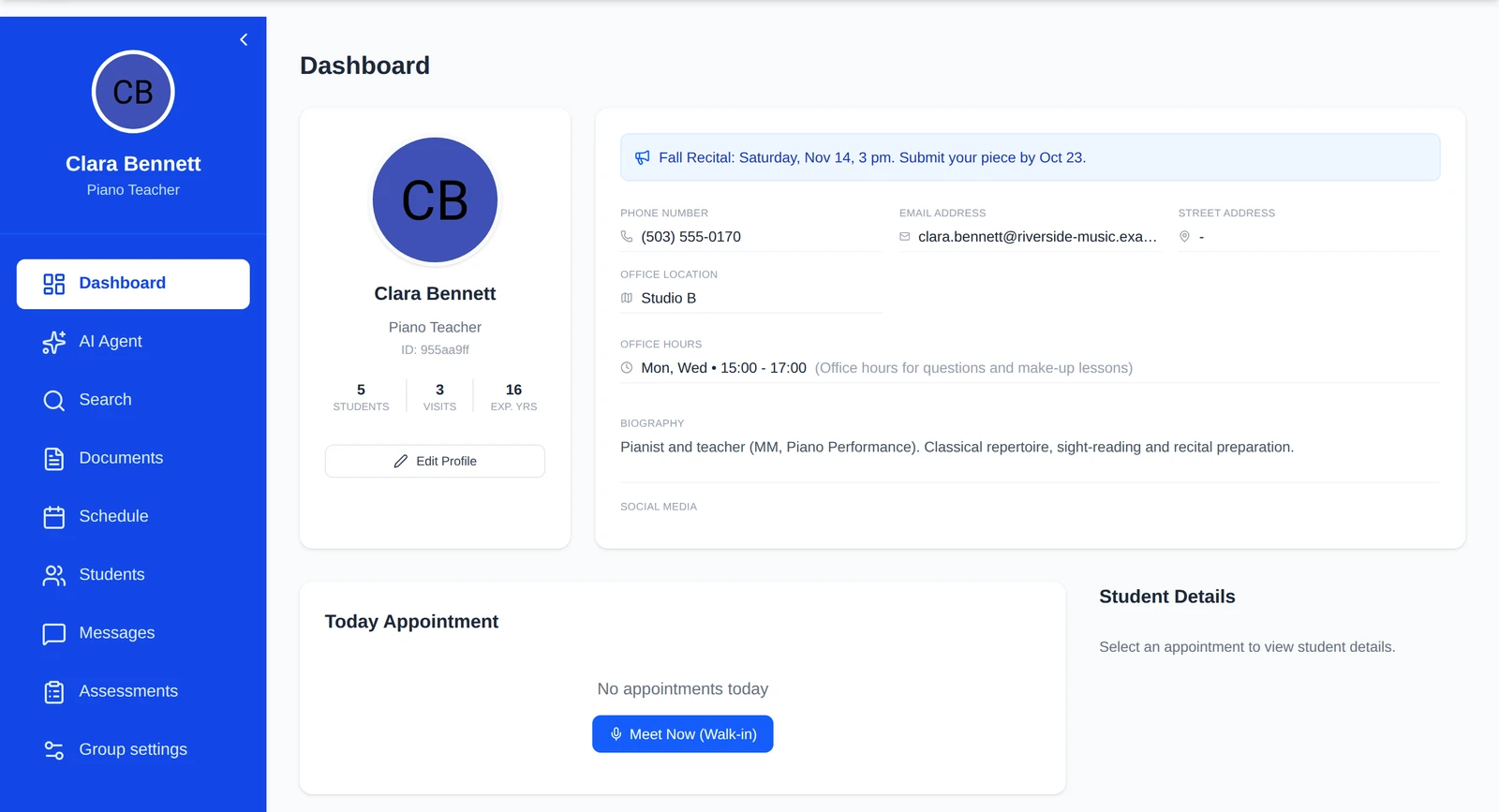
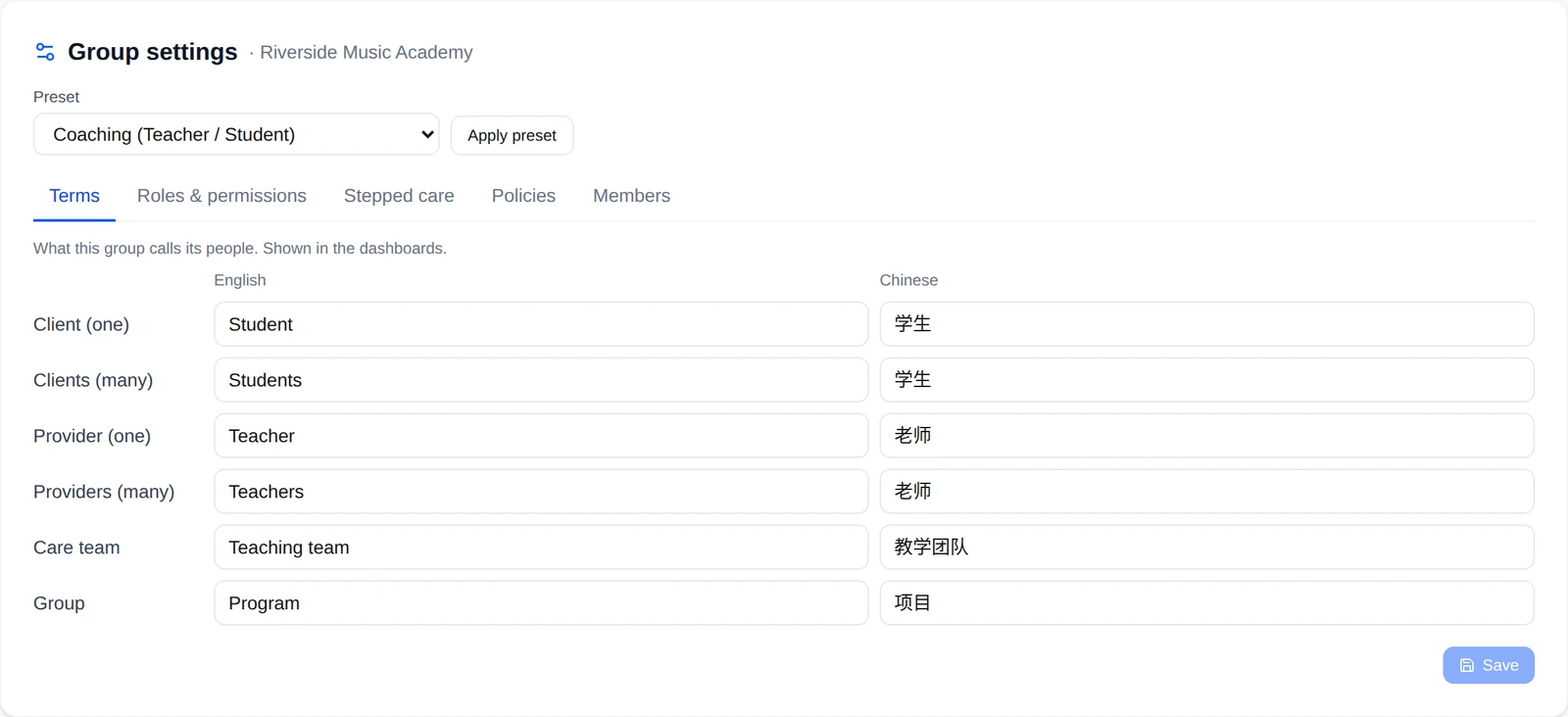
A group admin picks the Coaching setup: the dashboards say Teacher and Student, and the roles are teacher, coach and teaching assistant. There are no clinical notes and no stepped care, unless you turn them on.
- Rename roles or add your own
- Teaching team: several teachers per student
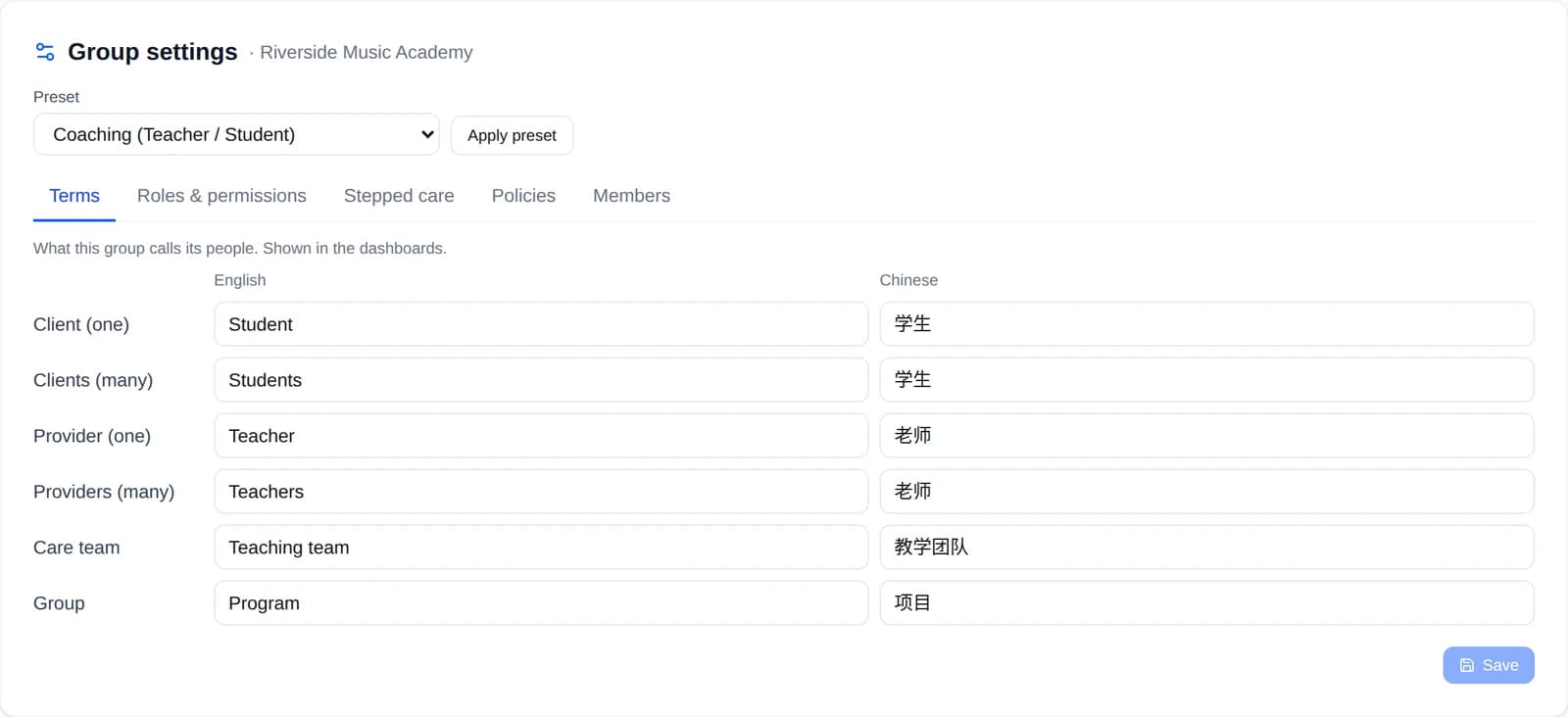
One choice sets the terms and roles for a teaching program. - Step 2
Assign practice and reflections
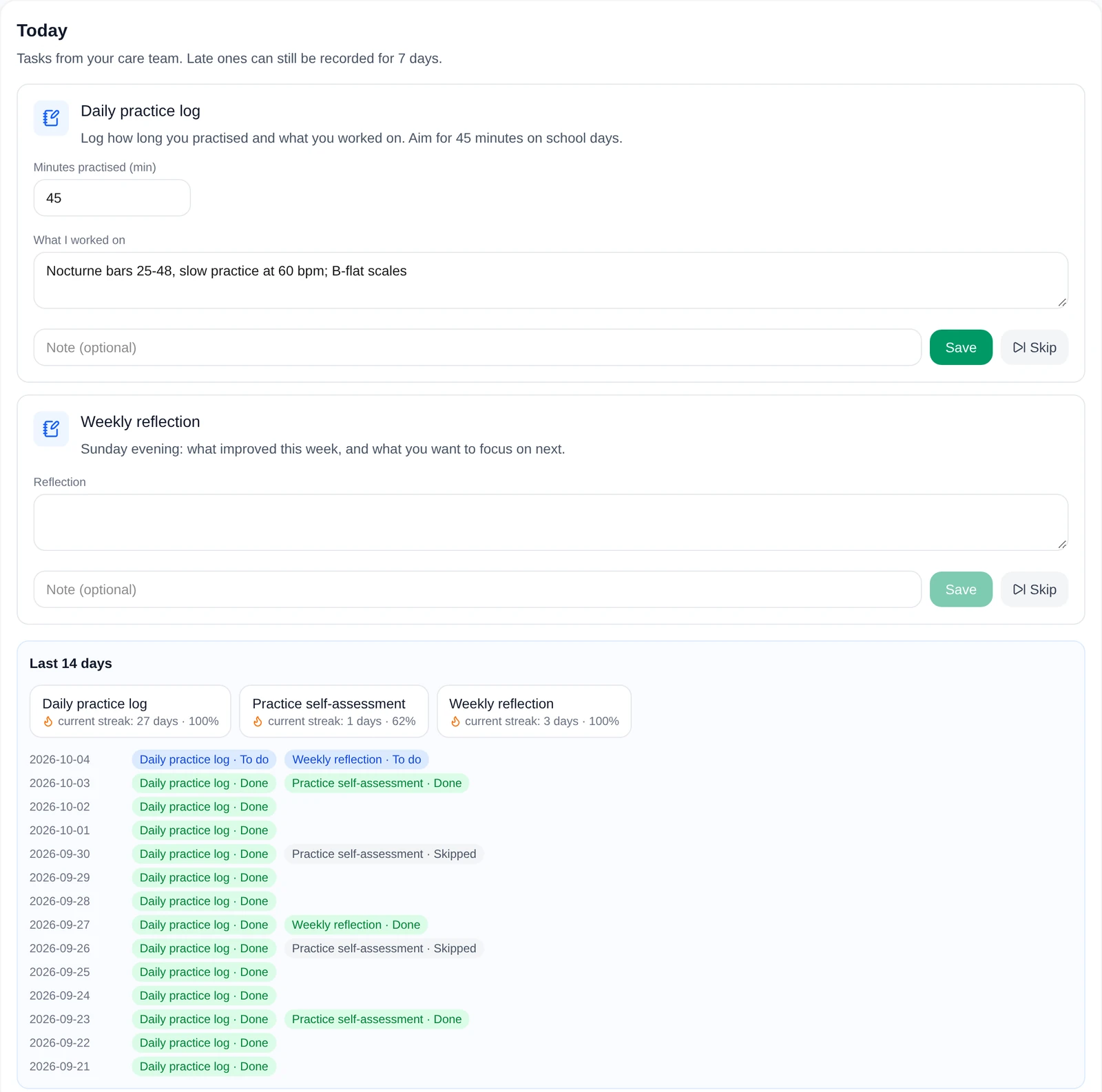
Turn assignments into check-ins: a daily practice log with minutes, a weekly reflection, a short questionnaire. Students see them in their Today list and check them off.
- Daily, weekly or monthly, on chosen weekdays
- Streaks keep students going
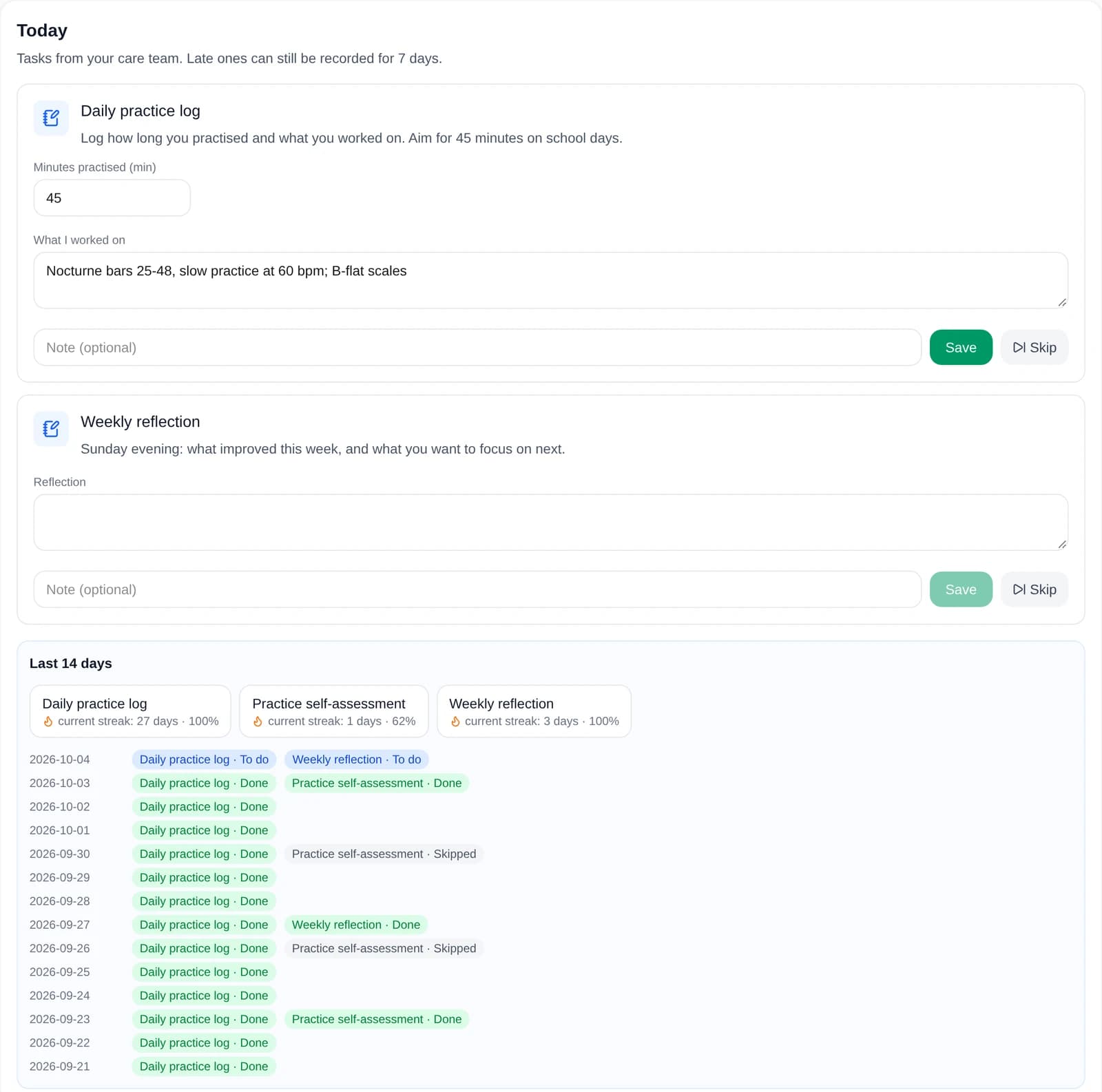
What the student sees each day. - Step 3
Office hours
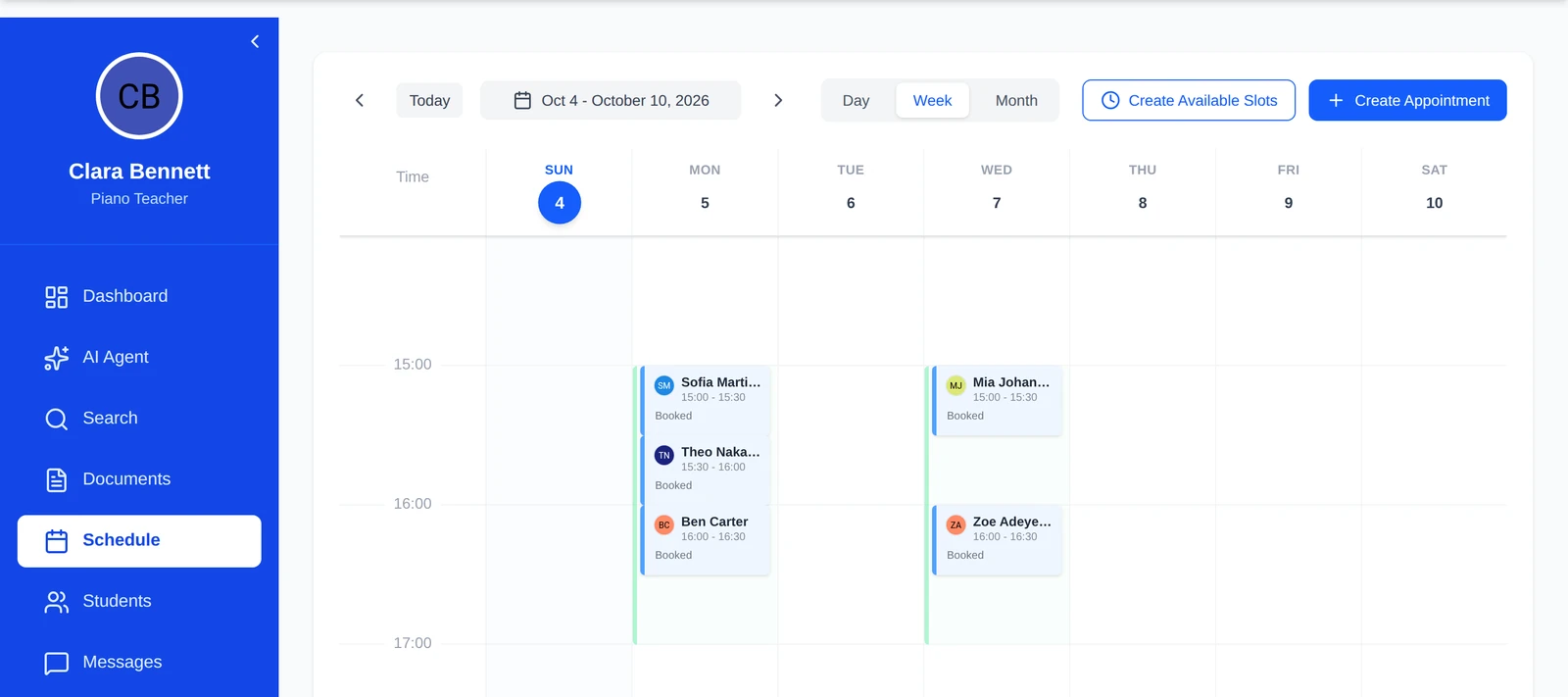
Open your office hours once; students book a slot themselves or ask the AI scheduling assistant, which offers only times you opened.
- All bookings in one calendar
- Record a lesson only if everyone consents
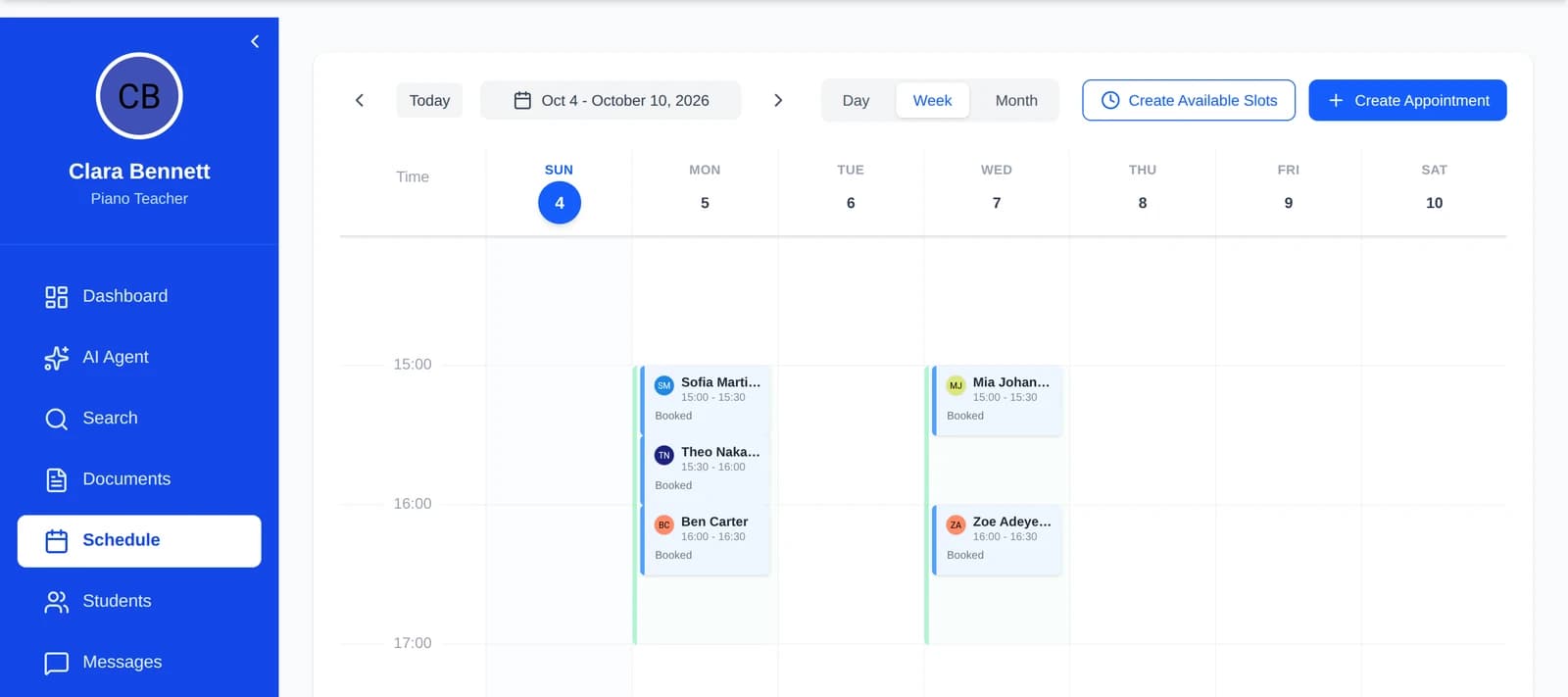
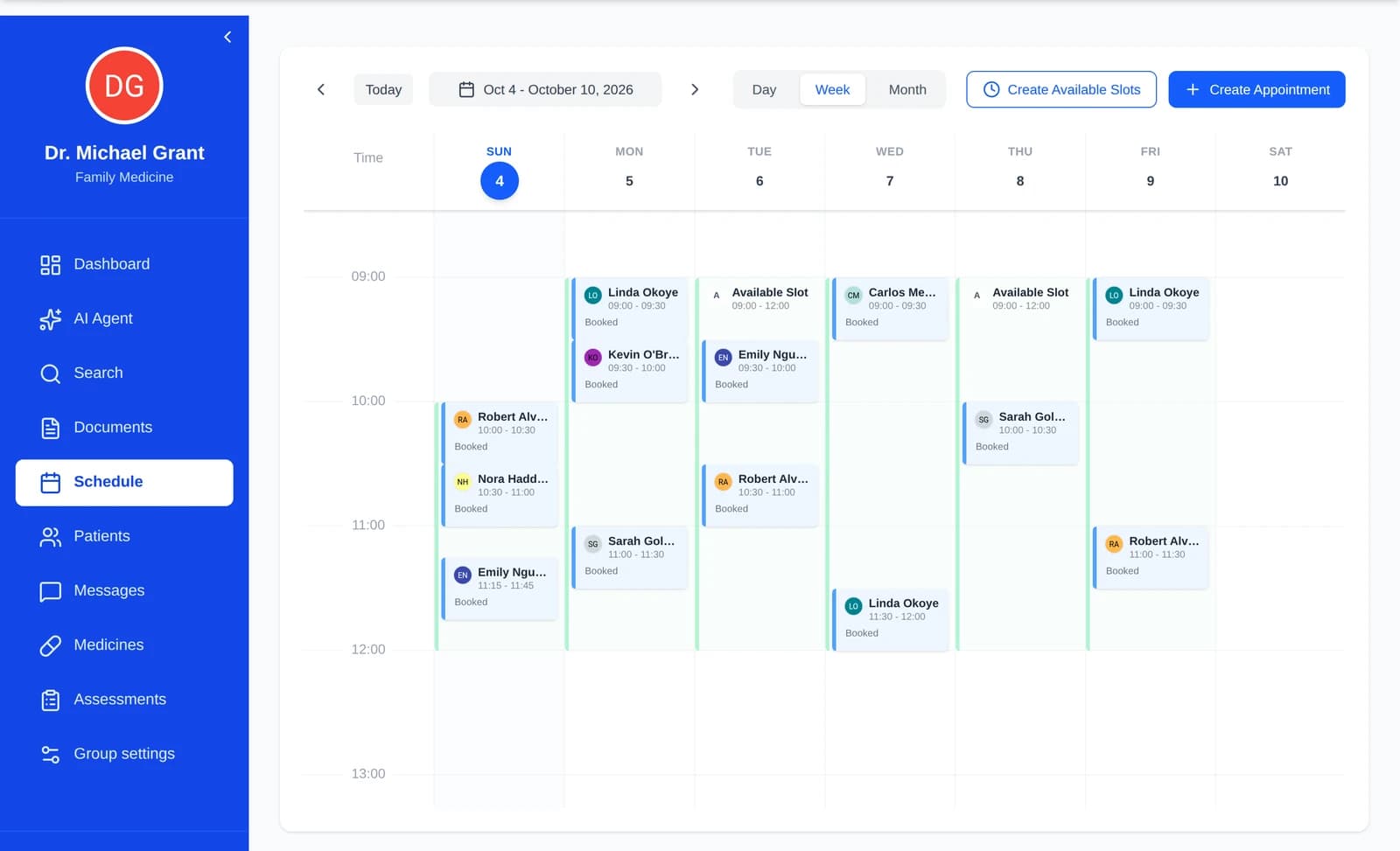
Office hours in the teacher's calendar. - Step 4
Your AI proxy answers course FAQs
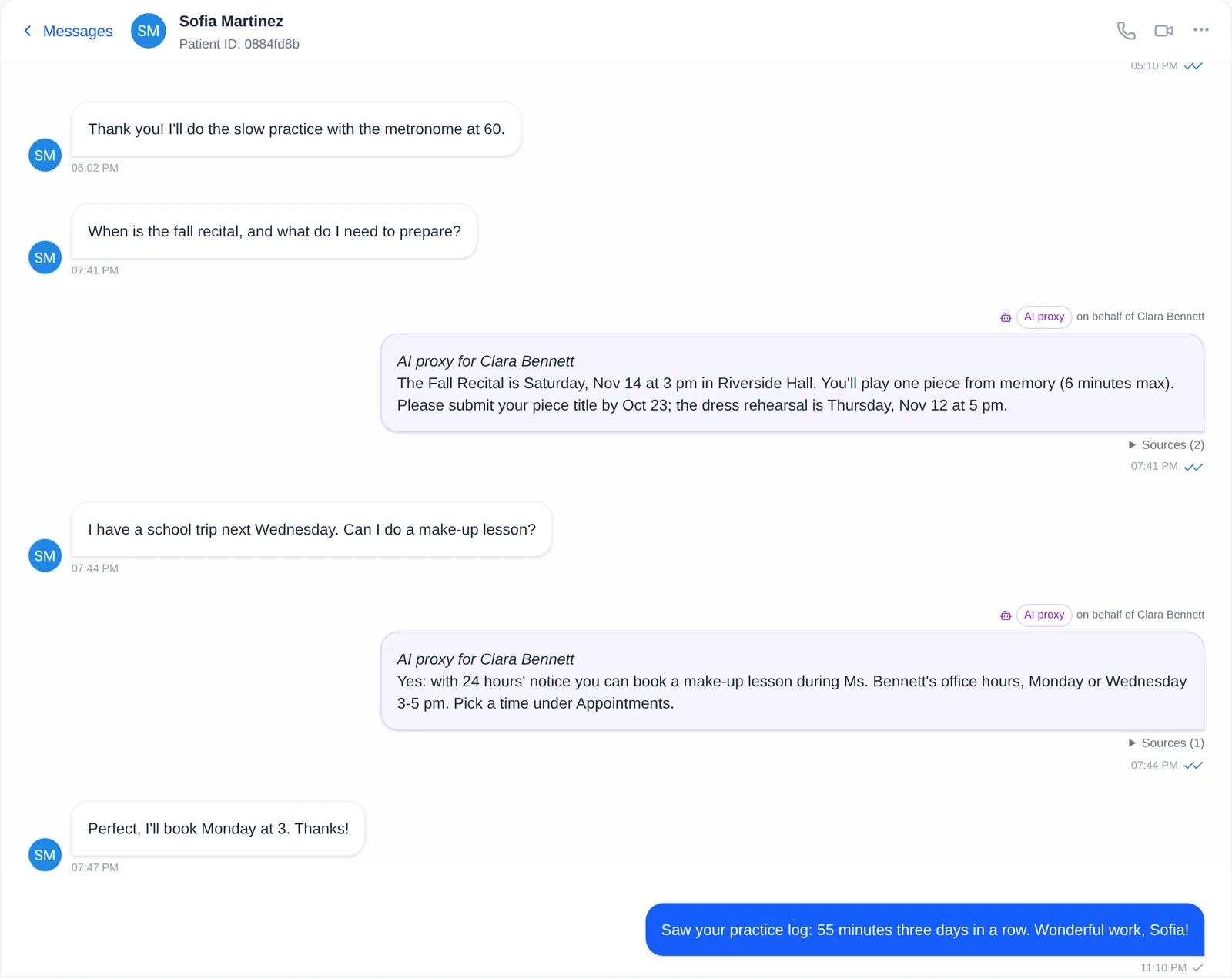
Give your proxy the syllabus, approved answers and reference documents. It answers questions such as deadlines or what to practise, cites its source, and passes anything else to you as a question with a draft.
- Labelled as AI in every reply
- Draft-only mode if you'd rather approve each answer
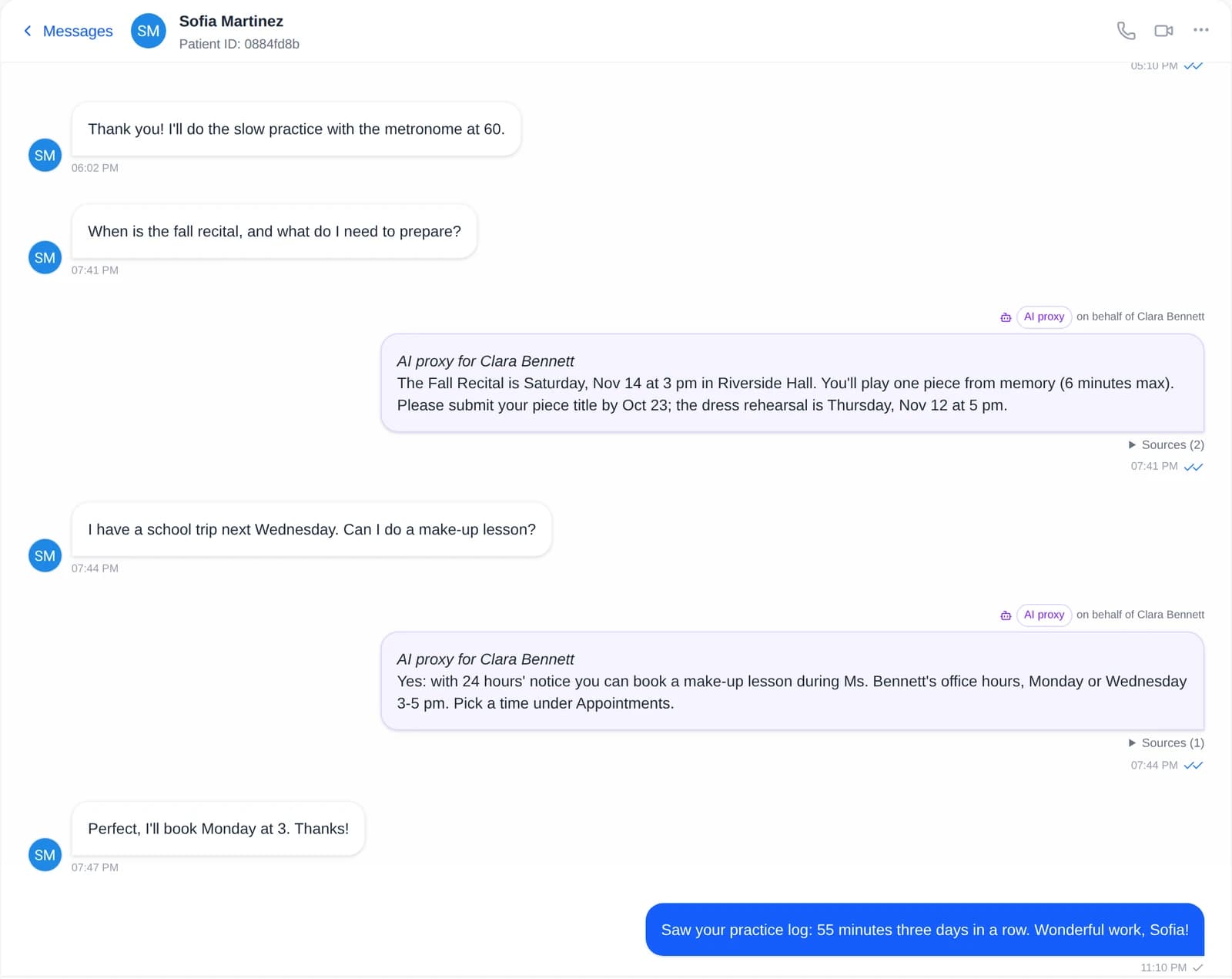
The teacher's AI proxy answering a course FAQ. - Step 5
Progress reports
One click turns a student's logs and reflections into a printable report with charts: minutes practised, streaks and answers over time, ready for a lesson or a parent meeting.
- Teaching assistants can view reports
- Same report format across the program
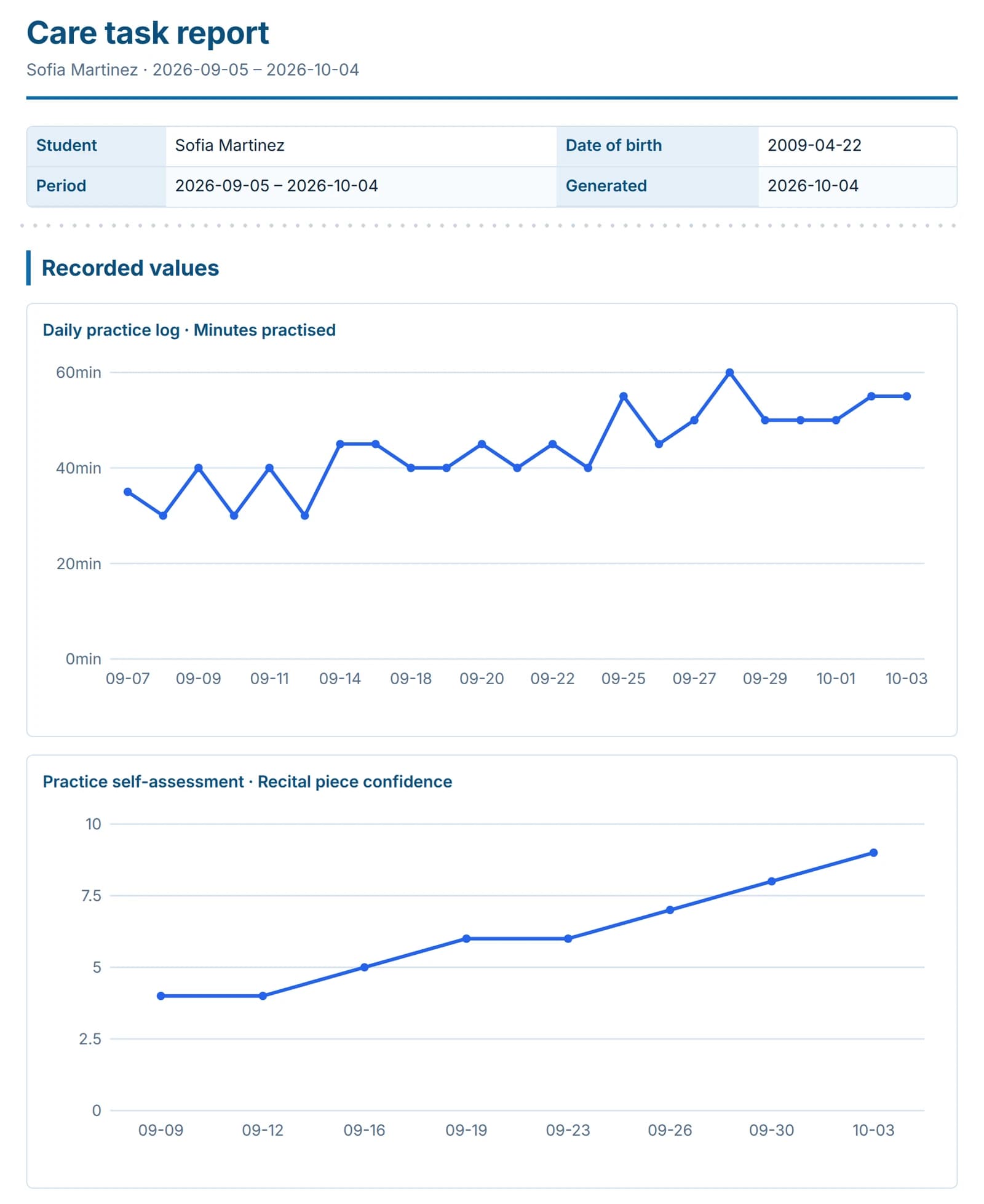
A progress report with charts, in one click.
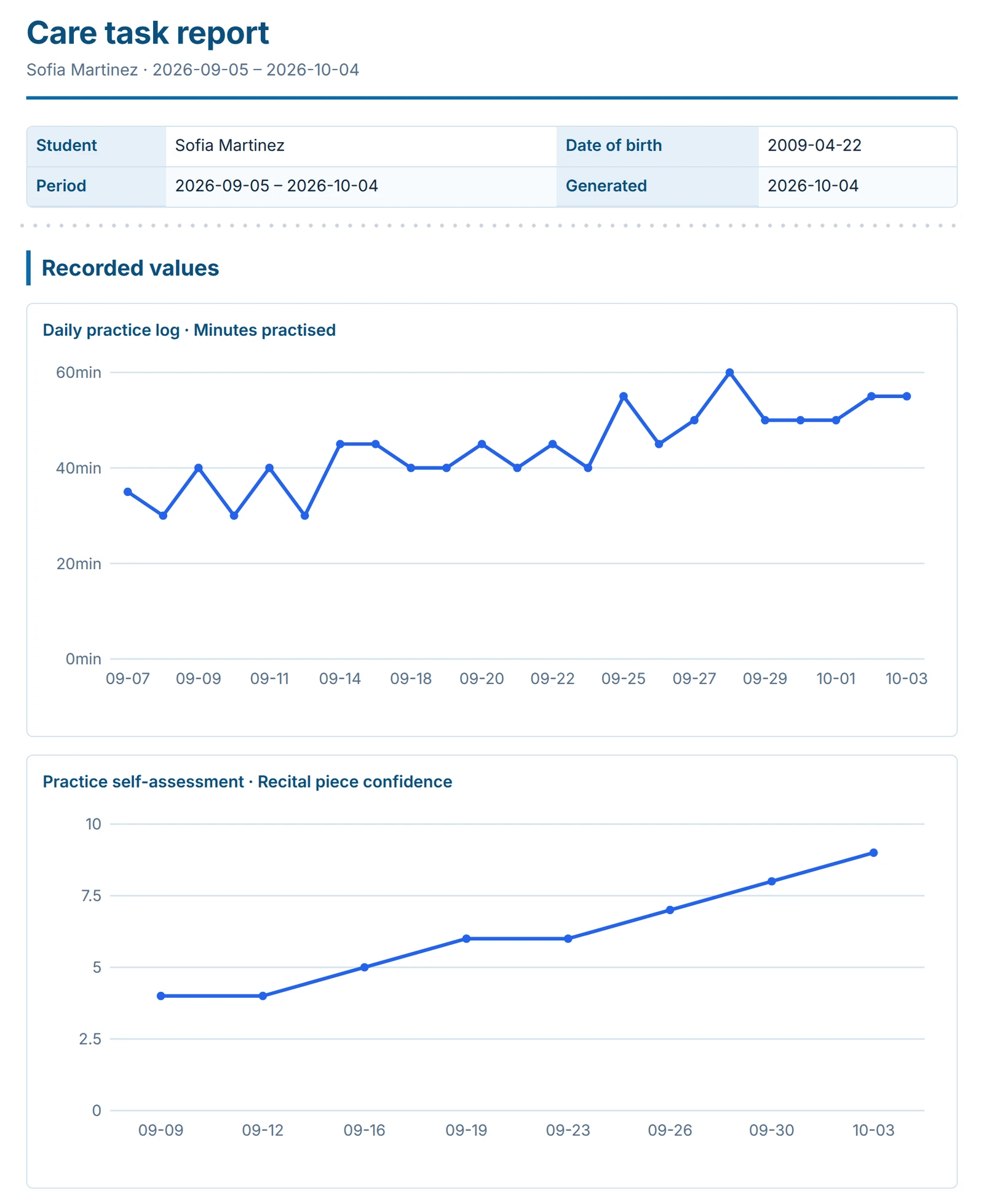
Screenshots and recordings show the CareNivoa product with demo data; every name in them is fictional.
What you can do
What teachers, coaches and students use each week.
Practice logs
Minutes or counts logged each day, charted over time.
Reflections
Short journals after practice or each week.
Questionnaires
Self-assessments and quizzes, scored on the server.
Office hours
Students book open slots, alone or with the AI scheduling assistant.
AI proxy for course FAQs
Answers from your syllabus and approved answers; hands off the rest.
Progress reports
Printable reports with charts for each student.
Teaching team
Teachers, coaches and teaching assistants share students.
Roles and permissions
Decide who assigns work, who views reports, who messages students.
Your terms
Teacher, coach, tutor, mentor; student, athlete, learner.
Lessons with consent
Record a lesson only if everyone agrees, with a transcript and summary.
Roles and permissions
The Coaching setup comes with three roles. None of them reads or writes clinical notes, and stepped care is off.
Teacher
Runs the course and the teaching team.
Can
- Assign care plans and check-ins
- Assign questionnaires and screenings
- View care-task reports
- Manage availability and appointments
- Message students
- Run Meet Now visits (recording with consent)
- Manage the teaching team
Cannot
- Read clinical notes
Coach
Assigns practice and follows up.
Can
- Assign care plans and check-ins
- Assign questionnaires and screenings
- View care-task reports
- Manage availability and appointments
- Message students
- Run Meet Now visits (recording with consent)
Cannot
- Manage the teaching team
- Read clinical notes
Teaching assistant
Helps with scheduling, messages and reviewing progress.
Can
- View care-task reports
- Manage availability and appointments
- Message students
Cannot
- Assign practice or questionnaires
- Run recorded sessions
Group admin
A teacher who also manages the program.
Can
- Edit roles, permissions, terms and policies
- Add and deactivate staff accounts
Student
Sees only their own work.
Can
- Book office hours, message teachers, complete check-ins
Cannot
- See other students
Privacy and compliance
The same controls as every CareNivoa group, applied to a teaching program.
Access by role
Students see only their own work; staff see only their program's students, within their role's permissions.
AI is always labelled
Every proxy reply says it is AI, and it answers only from material you approved, citing it.
Crisis messages go to people
Self-harm language in a student's message skips the AI, shows crisis lines and alerts the teacher.
Recording consent
A lesson is recorded only with every participant's consent; each change is logged.
Encrypted in transit and at rest
HTTPS everywhere; messages and answers are encrypted in our database (field-level).
No public file links
Files are served only by our authenticated server.
Audit trail and daily backups
Changes are logged and the database is backed up daily.
Your program's policies
Message deletion and other policies are set per program.
Account protection
Changing a password signs out every other session, a new email takes effect only after a code is confirmed, and login attempts are rate-limited.
We describe the controls the product has today rather than certifications. Need more detail for your review? Contact us
Frequently asked questions
Isn't CareNivoa for health care?
It is a care-workflow platform, and coaching is one setup of it. The Coaching setup uses Teacher and Student, has no clinical-notes permissions and leaves stepped care off.
What does the AI proxy answer?
Only what your instructions, approved answers and reference documents cover, and it cites them. Anything else comes to you as a question with a draft reply. You can also have it only draft.
Can a teaching assistant see everything?
No. By default a teaching assistant can view reports, manage office hours and message students, but cannot assign work or record sessions. A group admin can change that.
Can we call people something else?
Yes. Tutor, mentor, athlete, learner: a group admin sets the terms the dashboards use.
Try CareNivoa with your program
We'll set up your roles and a first practice plan, and show your team the reports and the AI proxy.
Other use cases
- Clinics and medical practicesDoctors and patientsBooking, visits, AI-drafted summaries, care plans and messages, with the clinician deciding.See the workflow
- Counseling and health centers in collegesStudent wellness centersScreening, stepped care and care teams, with AI proxies that students control and a crisis safety net.See the workflow